


With Emailchef, each subscriber decides whether to accept the tracking pixel when they join your mailing list, and can change their choice at any time from the Update your preferences link included in all your emails
TABLE OF CONTENTS
- How Emailchef automatically manages consent to tracking pixels
- Pixel tracking: the two steps left for you
- What’s changing for tracking pixels in Emailchef
- How to update your privacy policy and collect consent to tracking pixels
- How to turn off open tracking without unsubscribing
- How to view and change your contacts’ consent to tracking pixels
- What happens to open tracking when a contact is on multiple lists
- How to create a segment based on open tracking
- How Flows work with untracked contacts
- How to send a campaign without open tracking
- Tracking pixels: frequently asked questions
✅ How Emailchef automatically manages consent to tracking pixels
Emailchef gives you all the tools you need to follow the privacy guidelines on tracking pixels with ease.
Our platform:
- adds the Update your preferences link to the footer of all your emails;
- doesn’t include the tracking pixel in emails sent to people who have chosen not to be tracked;
- applies each choice to all the lists the contact is subscribed to;
- records every change, so you can always show when and how it happened;
- lets you remove the pixel from an entire campaign, by unticking a box in the campaign settings.
📝 Pixel tracking: the two steps left for you
You only need to take two steps, once:
- add a sentence to your privacy policy explaining that you use a tracking pixel in your emails;
- let your existing subscribers know, with a short message in your next campaign.
For both, you’ll find a ready-to-use text to copy and paste on this page.
What’s changing for tracking pixels in Emailchef
In email marketing, subscribing to a newsletter and having your opens tracked have always gone hand in hand. With Emailchef, every subscriber can now separate the two: they can keep receiving your emails and ask not to be tracked anymore.
This option is required by European data protection authorities: France’s CNIL published a recommendation on tracking pixels in emails, and the Italian Data Protection Authority (Garante per la protezione dei dati personali) published its Guidelines on tracking pixels in email communications (Decision No. 284 of 17 April 2026).
The rules on tracking pixels come from the EU ePrivacy Directive (Article 5(3)), which applies across the European Union, together with the GDPR principles on consent, transparency and accountability. The European Data Protection Board (EDPB) confirmed in its Guidelines 2/2023 that tracking pixels fall within the scope of this rule. Each country has transposed the directive into its own law, and national data protection authorities issue their own guidance: France’s CNIL and Italy’s Garante were the first to publish dedicated guidance on tracking pixels in emails, and other authorities are moving in the same direction.
For more details on what the Italian Garante’s guidelines require and what your obligations are as a data controller under Italian rules, read our blog article on Tracking Pixel.
⚠️ If your business is based outside Italy, check the guidance of your local data protection authority.
Here’s how it works for your subscribers: Emailchef adds the Update your preferences link to the footer of every email. From there, subscribers reach a page with a Privacy and open tracking section:
- if they leave the box ticked, they keep being tracked;
- if they untick it, they stay subscribed and, from that moment on, receive your emails without the tracking pixel.
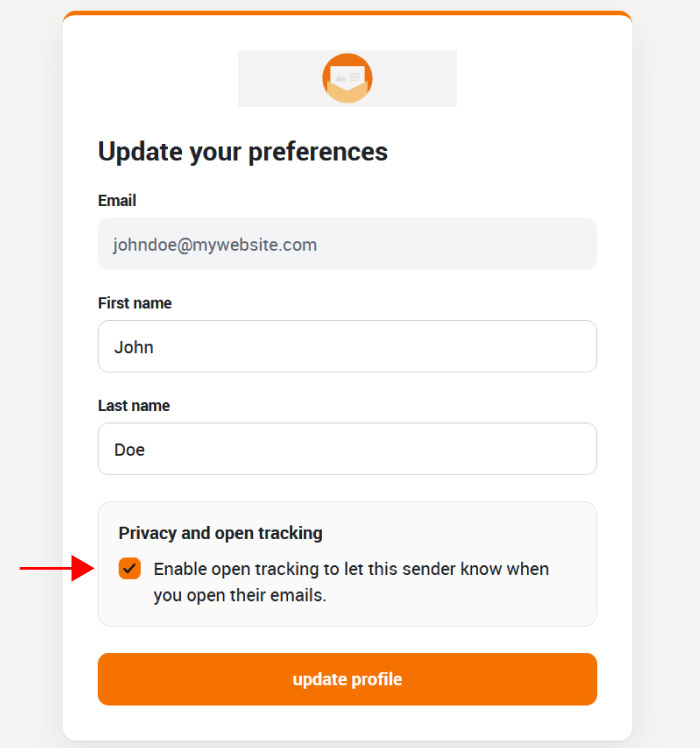
Their choice applies to all your lists they’re subscribed to (for example, your newsletter, your customer list and an event attendee list), and they can change it whenever they want.
⚠️ Please note: link clicks are still recorded as usual, because the guidelines only cover the pixel that records opens.
A tracking pixel is an invisible image that loads when a subscriber opens an email, and it records the open without them noticing. Clicking a link, on the other hand, is a deliberate, conscious action. That’s why subscribers who turn off open tracking still appear in your click statistics.
How to update your privacy policy and collect consent to tracking pixels
First, update your privacy policy to explain that you use a tracking pixel in your emails. The Garante’s guidelines require you to let your recipients know that you use the pixel, whatever type of email you send.
Here’s a sentence you can add to your privacy policy:
Our emails contain a tracking pixel that lets us know when you open them. You can ask us to stop tracking you at any time, without unsubscribing, using the “Update your preferences” link included in every email.
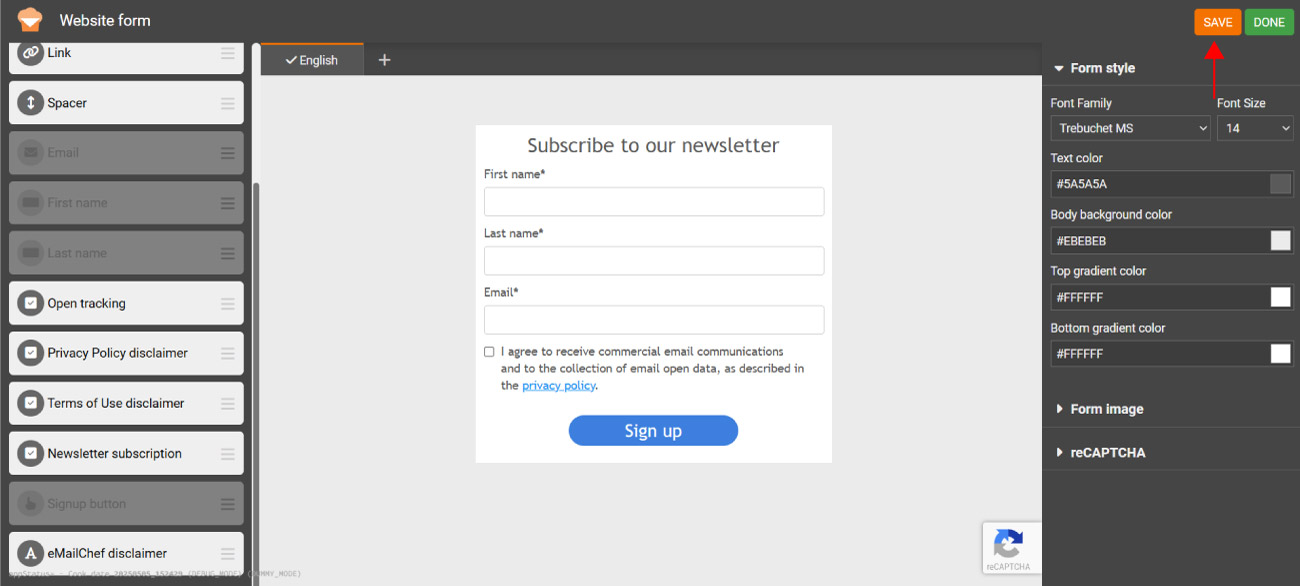
Once your privacy policy is updated, you can collect consent to open tracking directly in your sign-up form, together with consent to receive your newsletter. In Emailchef you’ll find a ready-made element with this text:
I agree to receive commercial email communications and to the collection of email open data, as described in the privacy policy.
Subscribers who prefer not to be tracked can turn off open tracking at any time from the Update your preferences link, and keep receiving your emails.
⚠️ Important: these texts are a starting point and do not constitute legal advice. The privacy policy sentence must be part of a complete privacy policy, which also describes the data collected, the purposes, the legal basis and the retention period. As the data controller, it’s up to you to decide, with your privacy advisor, which texts best suit your business.
How to add consent to tracking pixels to your sign-up form
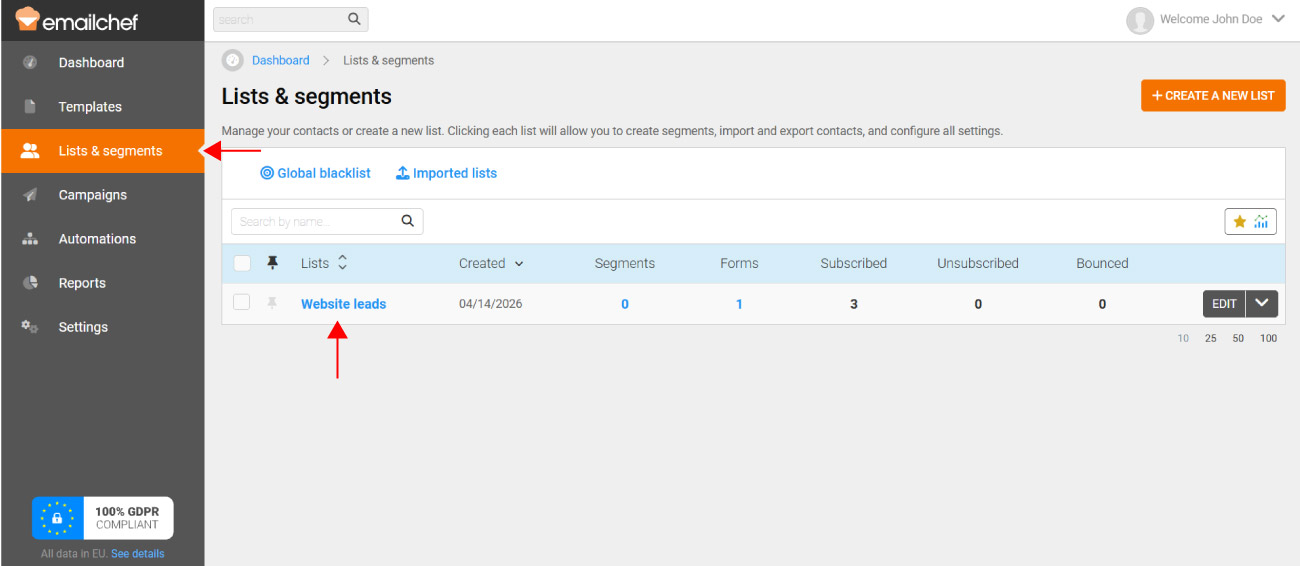
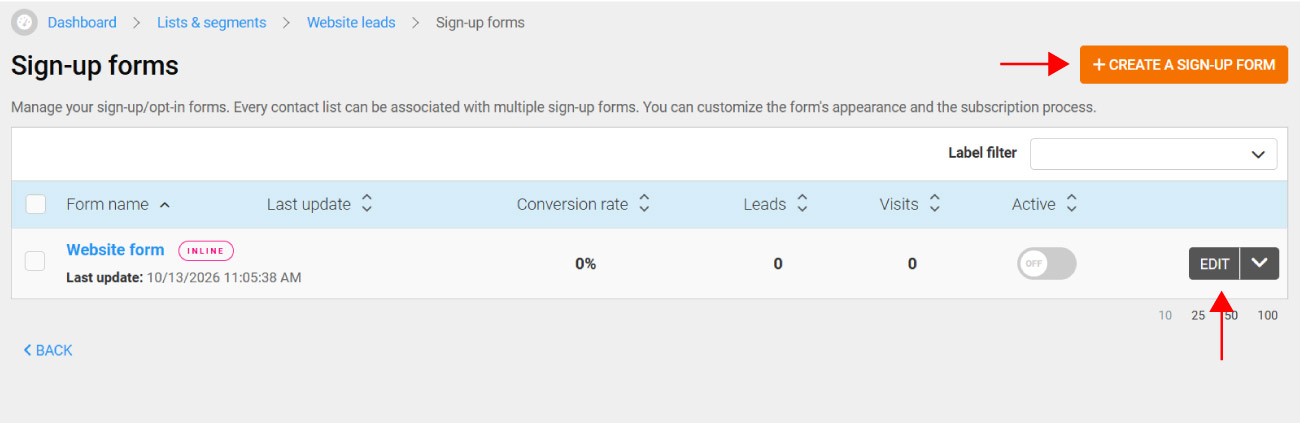
- Click Lists & segments and open the list your form is linked to.
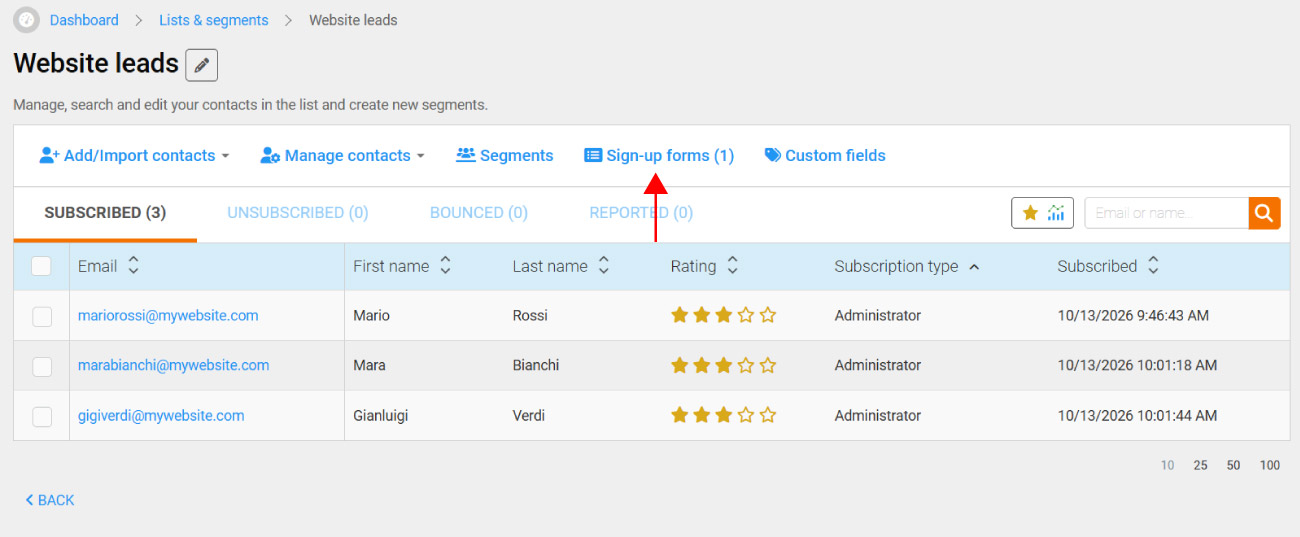
- Select Sign-up forms.
- Click Edit next to the form you want to edit, or create a new one by clicking + Create a sign-up form.
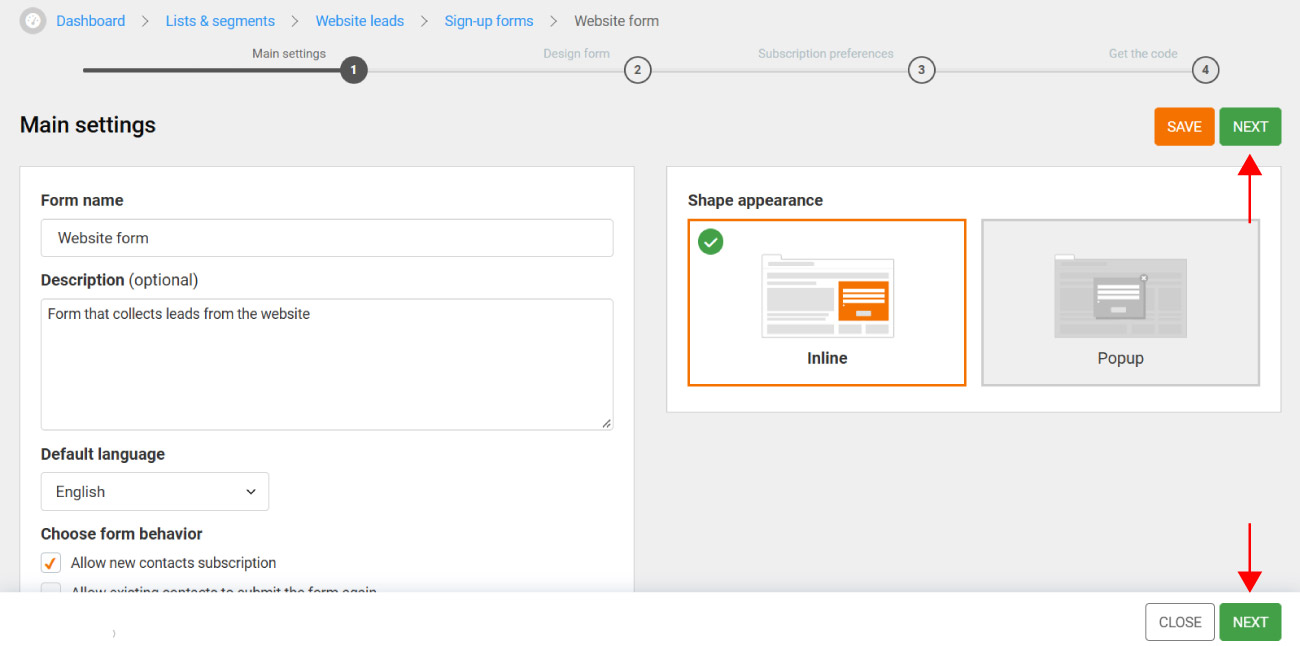
- Fill in the form’s Main settings, then click Next.
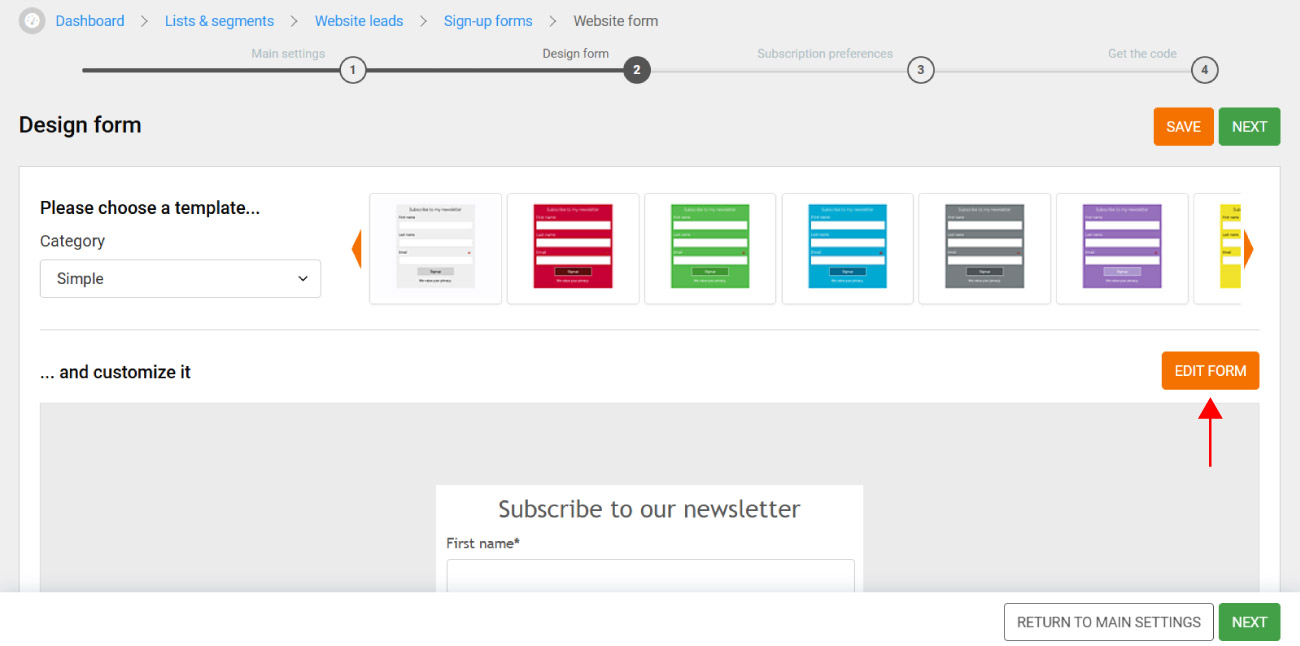
- Choose a template, then click Edit form.
- From the elements panel on the left, drag the Newsletter subcription element into your form. A checkbox will appear with the text “I agree to receive commercial email communications and to the collection of email open data, as described in the privacy policy.”.
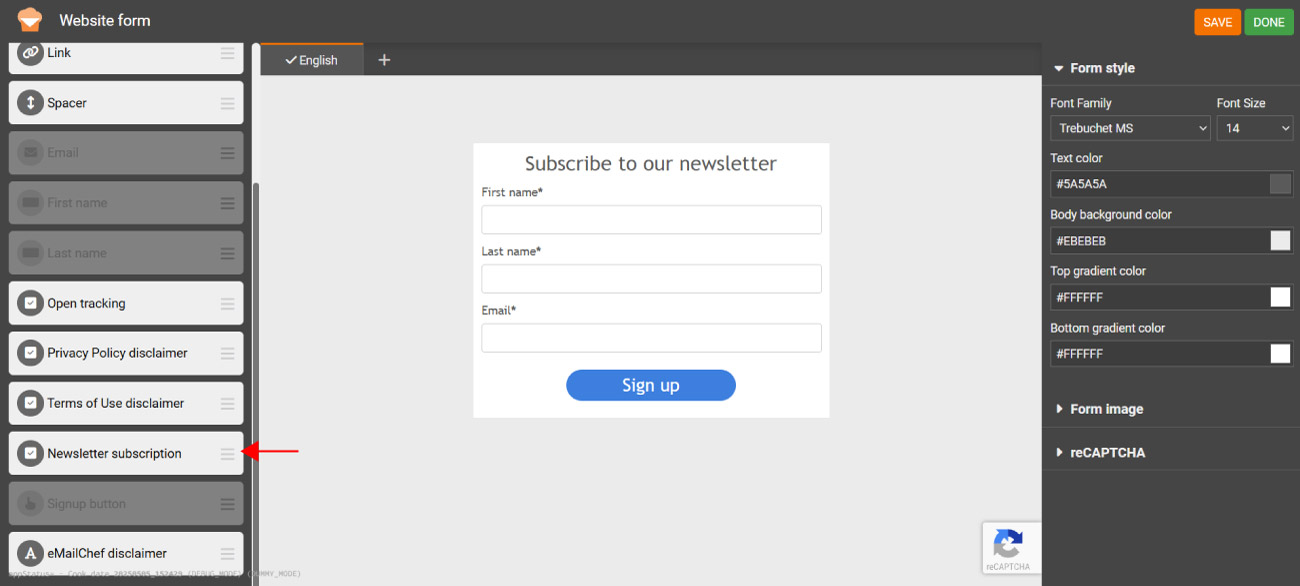
- Save the form: from now on, anyone who subscribes to your newsletter also consents to open tracking.
💡How to let your existing subscribers know you use tracking pixels
For contacts already on your lists, the Garante’s guidelines allow you to provide the privacy information with the first useful message, meaning the first email you send after updating your practices, or at the first opportunity when your relationship with the contact changes, for example when they update their details or renew a service.
With Emailchef, the easiest way is to add a short notice to your next campaign, at the top of the message or just above the footer. Here’s an example:
We’ve updated our privacy policy to better explain how we use the tracking pixel in our emails: an invisible image that tells us when you open a message, so we can understand which content interests you most. You can now also choose not to be tracked: click “Update your preferences” at the bottom of any of our emails and turn off tracking. You’ll keep receiving our emails as usual, but your opens won’t be tracked.
Remember to link the words “privacy policy” to the page with your updated privacy policy.
If you prefer to send the notice as a dedicated campaign, you can send it to all your lists. You can also identify the contacts who haven’t made a choice yet: create a segment with the condition Open tracking is Enabled (Default).
We recommend sending this campaign without open tracking, by unticking See who opens this campaign in the campaign settings. It’s a simple way to introduce the change to your subscribers while respecting their choices.
⚠️ Important: the guidance and texts in this section are a starting point and do not constitute legal advice. As the data controller, it’s up to you to decide, with your privacy advisor, how to inform your subscribers and who to send the notice to.
How to turn off open tracking without unsubscribing
The footer of every email sent with Emailchef includes two links subscribers can use to turn off open tracking: Unsubscribe and Update your preferences.

From the Update your preferences link, subscribers reach the preferences page.
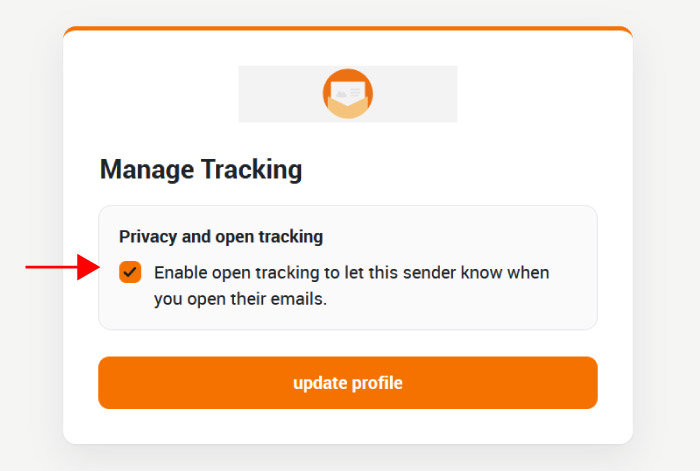
In the Privacy and open tracking section they’ll find a checkbox, ticked by default, that reads “Yes, you can use a tracking pixel to see when I open your emails…”. To stop being tracked, they just untick it and click update profile.
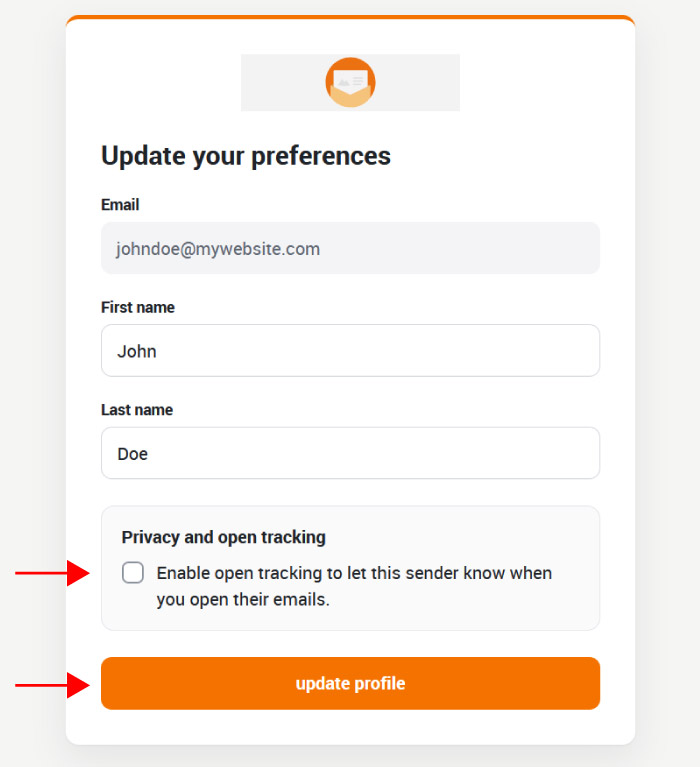
Subscribers who choose not to be tracked stay on your list and keep receiving your emails as usual. From the next email onwards, however, Emailchef won’t include the tracking pixel in the messages sent to them.
If they change their mind later, they just go back to the same page and tick the box again.
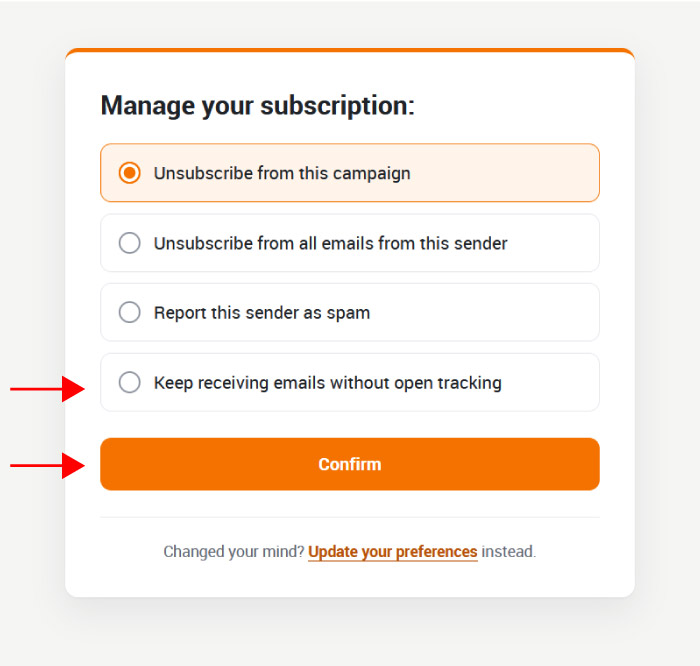
From the Unsubscribe link, subscribers reach the page Manage your subscription.
Here, besides the unsubscribe options, they’ll find the option Keep receiving emails without open tracking: by selecting it and clicking Confirm, they stay subscribed without being tracked. They can always change their mind using the update your preferences link on the same page, or in the footer of any email.
💡Want to make the tracking choice more visible?
If you like, you can add a clearer link to manage tracking directly in the body of your email.
To add it:
- in the editor, add a text element;
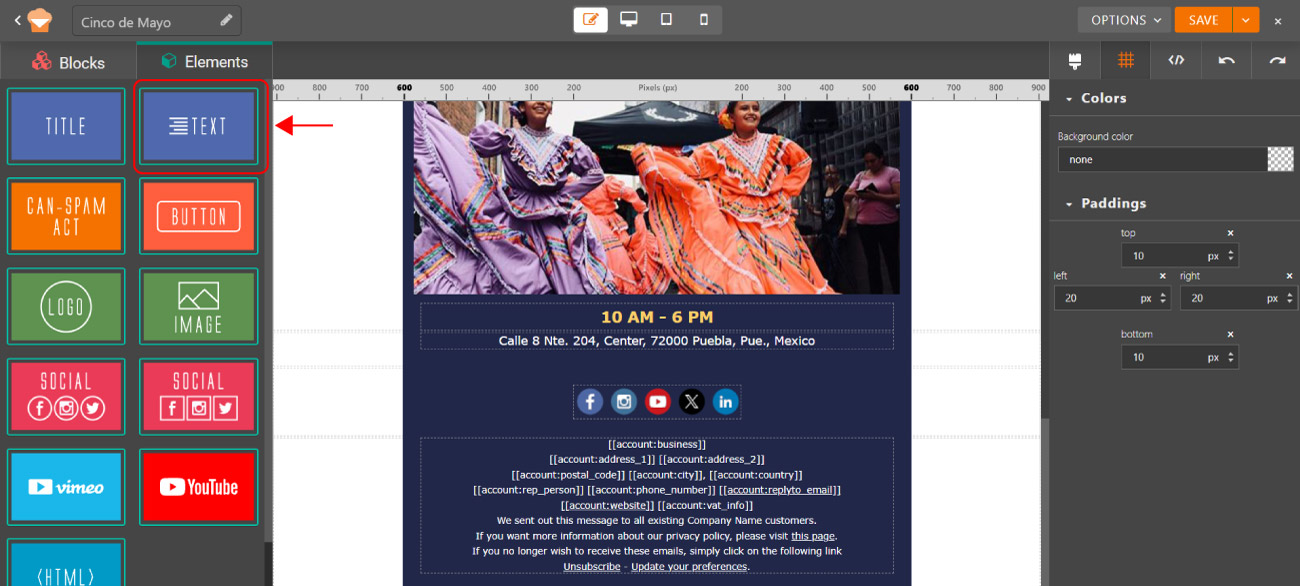
- click where you want to insert the link and open the Add special link drop-down menu. Then select Manage Tracking.
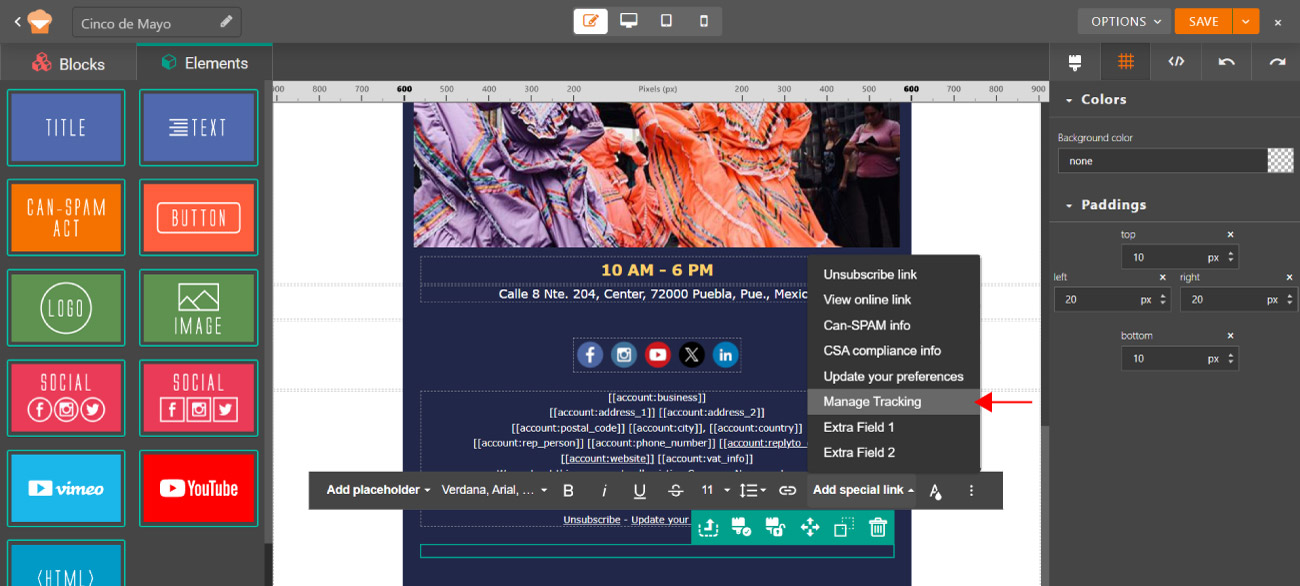
Anyone who clicks it reaches a page with a single checkbox to enable or disable open tracking.
How to view and change your contacts’ consent to tracking pixels
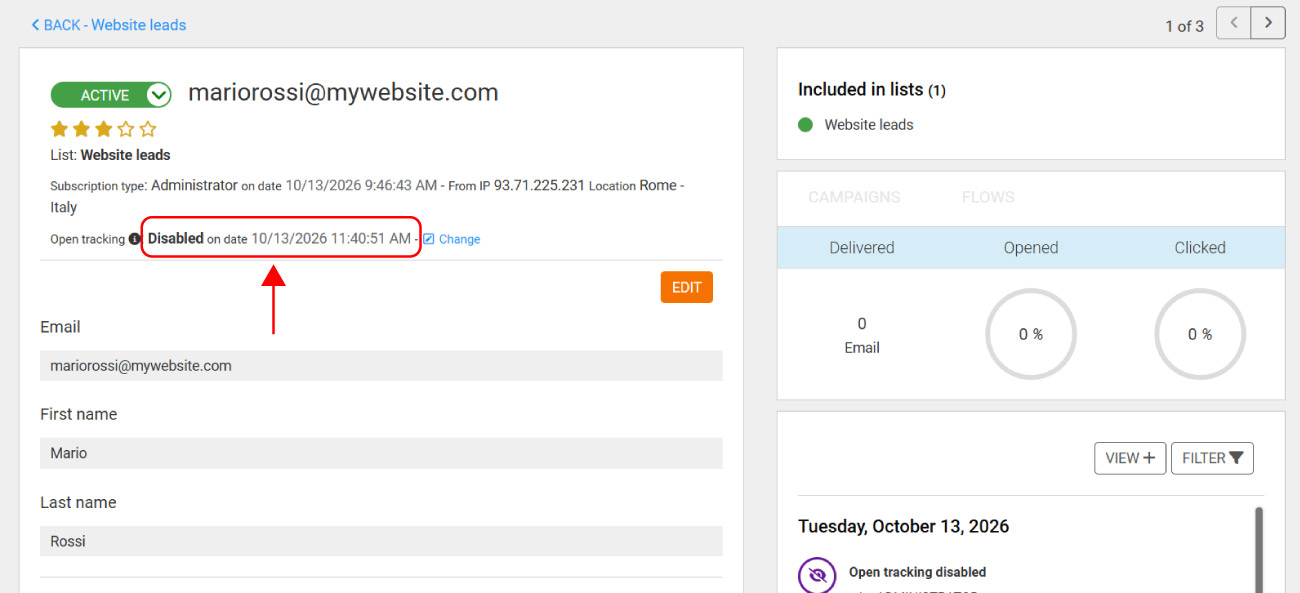
To find out whether a contact has chosen not to be tracked, go to Lists & segments, choose the list and select the contact. At the top of the contact details you’ll find Open tracking, which shows whether tracking is enabled or disabled.
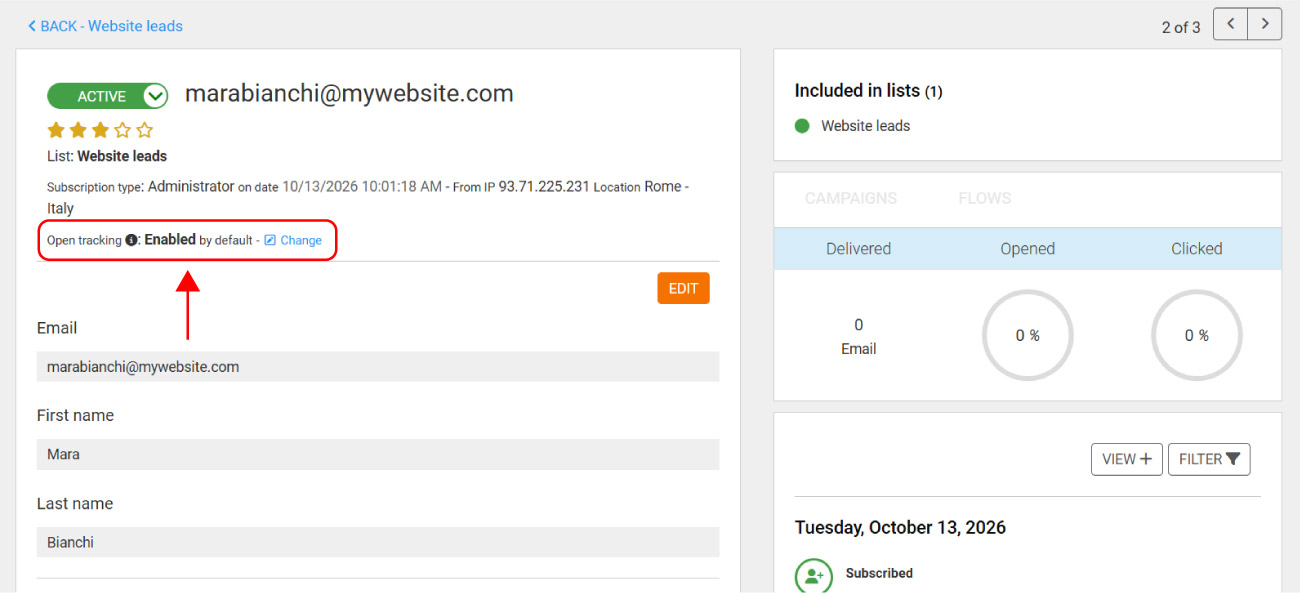
Every new contact starts with open tracking enabled: in this case, Enabled by default appears next to Open tracking.
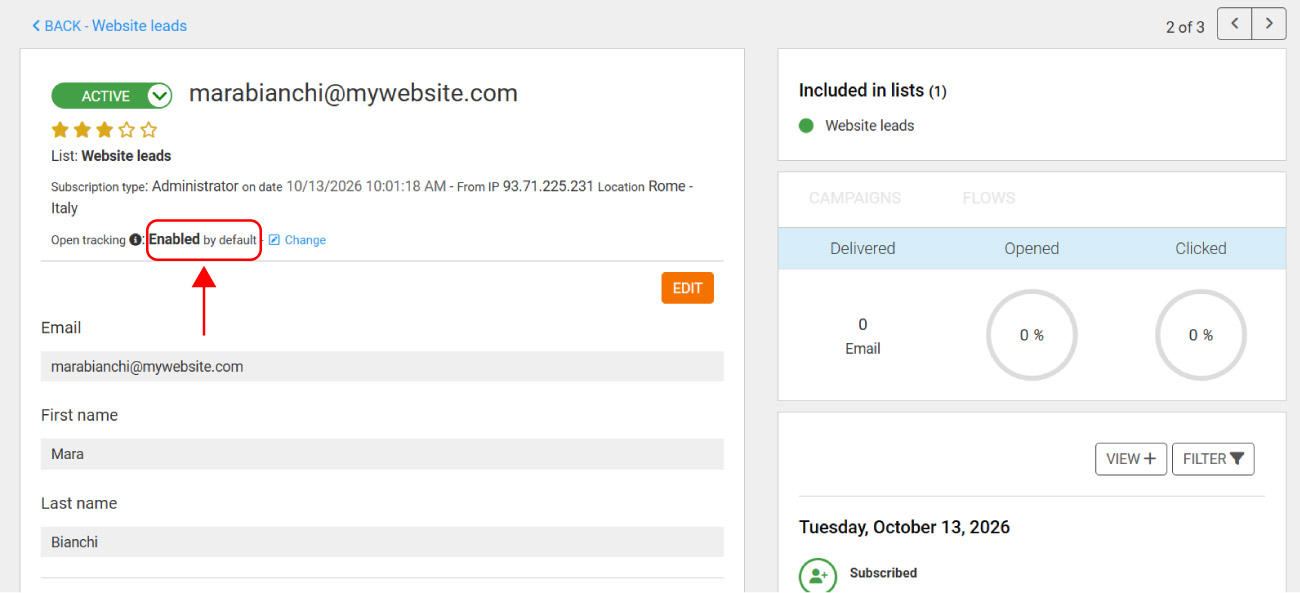
If tracking is changed, you’ll see the new status (Enabled or Disabled) and the date and time of the change.
You can also enable or disable open tracking for a contact manually. You may need to, for example, when:
- a subscriber asks you to stop tracking them without using the footer link, for example by replying to one of your emails, calling you or contacting your customer service;
- you’ve imported contacts from another system and you don’t have consent to tracking for some of them;
- a subscriber who had turned off tracking asks you to turn it back on, for example by email or phone.
In all these cases, keep a record of the request, for example the email you received.
To change a single contact:
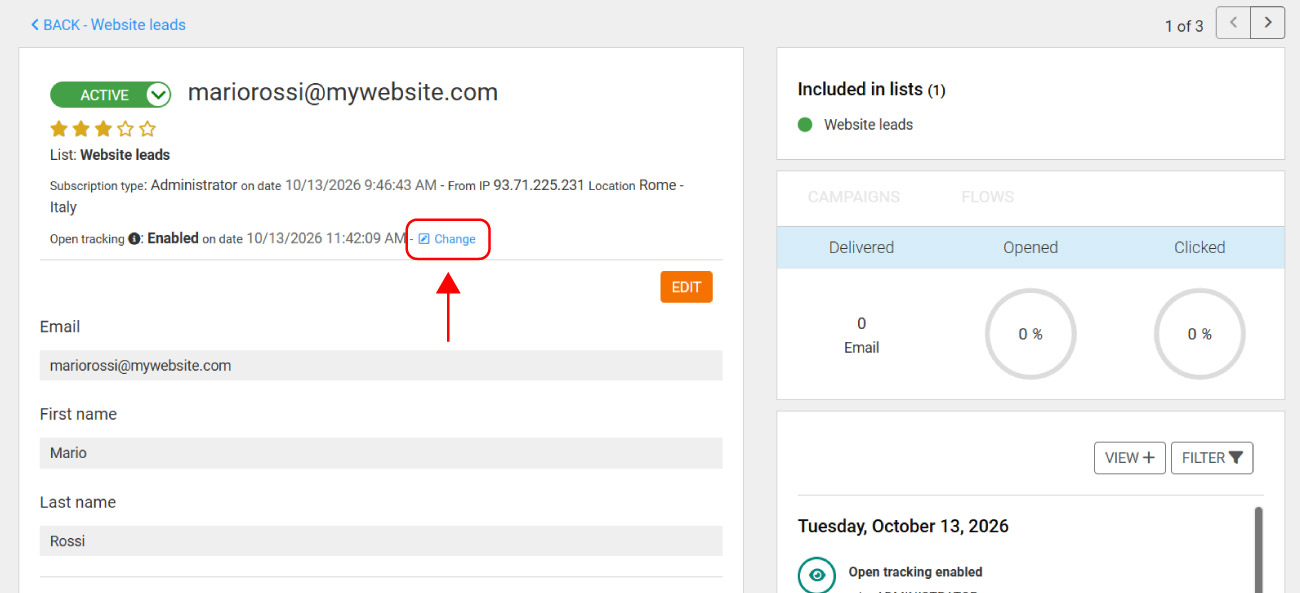
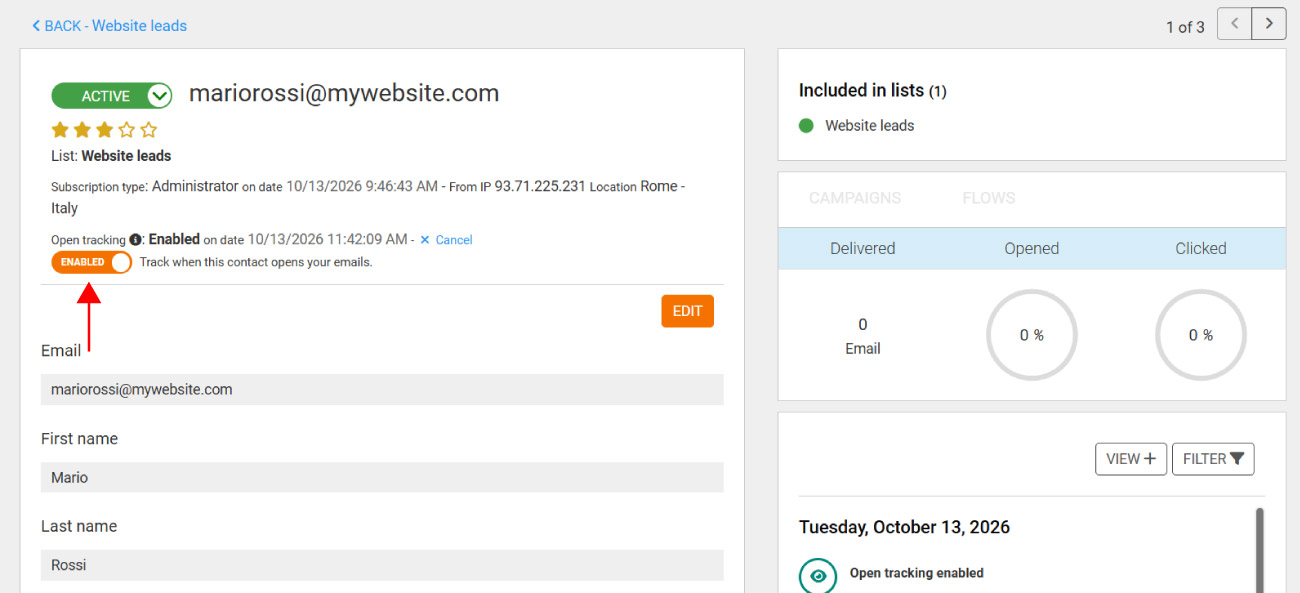
- In the contact details, click Change next to Open tracking. A toggle appears: when it’s set to Enabled, tracking is on; otherwise, it’s off.
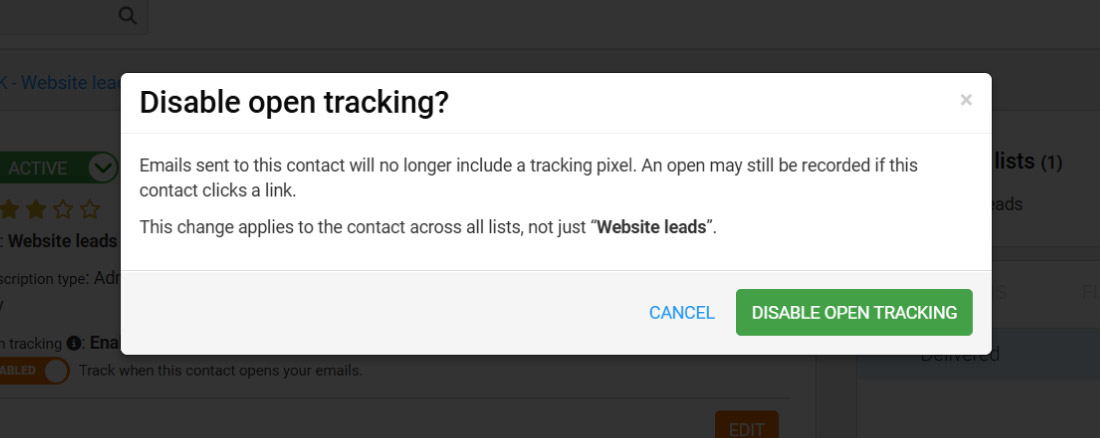
- Move the toggle to change the setting. A window will open asking you to confirm, and reminding you that the change applies to the contact across all lists.
- Click Disable open tracking or Enable open tracking to confirm, or Cancel to stop.
The date and time of the last change appear next to Open tracking.
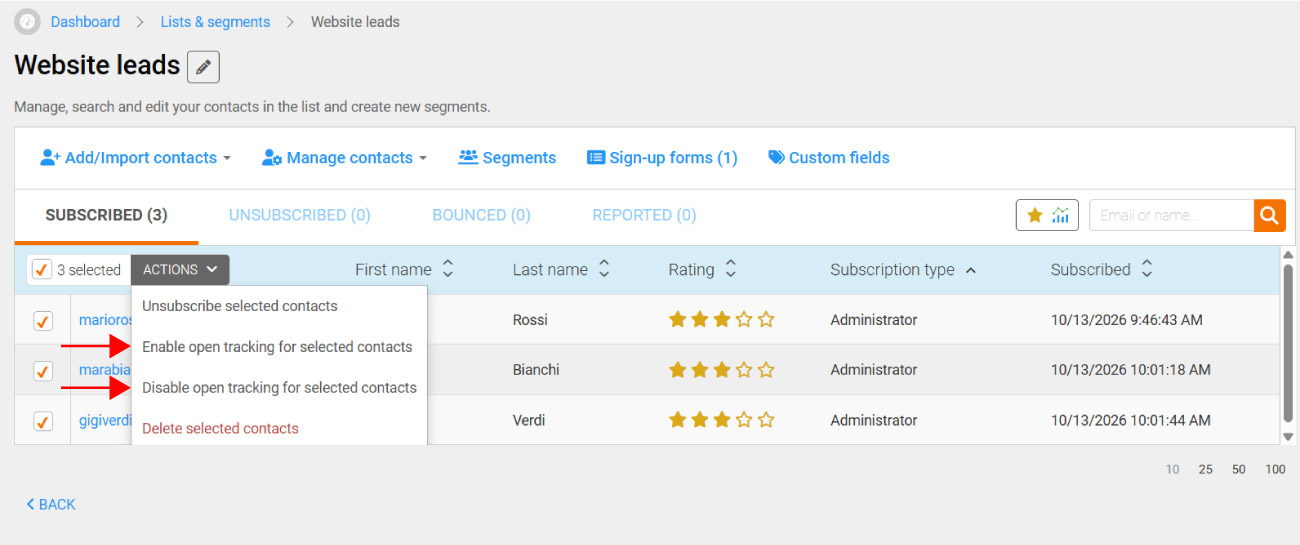
To change several contacts at once, for example after an import:
- Go to Lists & segments and open the list.
- In the Subscribed tab, select the contacts using the checkbox on the left.
- Click Actions and choose Enable open tracking for selected contacts or Disable open tracking for selected contacts.
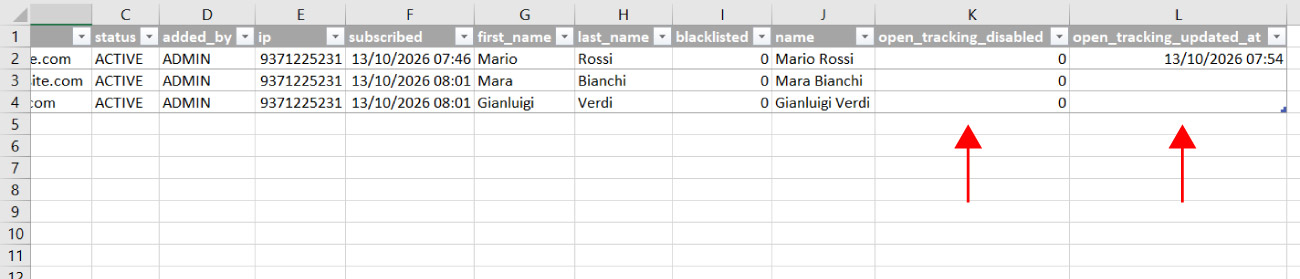
You’ll also find the open tracking status when you export your contacts to a CSV file, or retrieve them via API from another tool connected to Emailchef (for example, your CRM). There are two columns:
- open_tracking_disabled: shows whether open tracking is disabled (1) or enabled (0);
- open_tracking_updated_at: shows the date and time of the last change. If it’s empty, the status has never been changed and open tracking is enabled by default.
What happens to open tracking when a contact is on multiple lists
A contact’s tracking choice applies to all the lists they’re subscribed to. If the same email address is on several lists in your account and the contact turns off tracking, Emailchef applies their choice to all those lists.
Every change is also recorded in the activity history, at the bottom right of the contact details. Here you’ll see entries such as Open tracking enabled or Open tracking disabled, along with where the change came from (for example, the preferences page or the footer link) and the time. This way, if you’re ever asked, you can show how and when each choice was recorded.
How to create a segment based on open tracking
You can group your contacts by their tracking status. Create a new segment as explained in How to segment your contact list and set the condition as follows:
- in the first menu, choose Open tracking;
- in the second menu, choose is;
- in the third menu, choose the status you need.
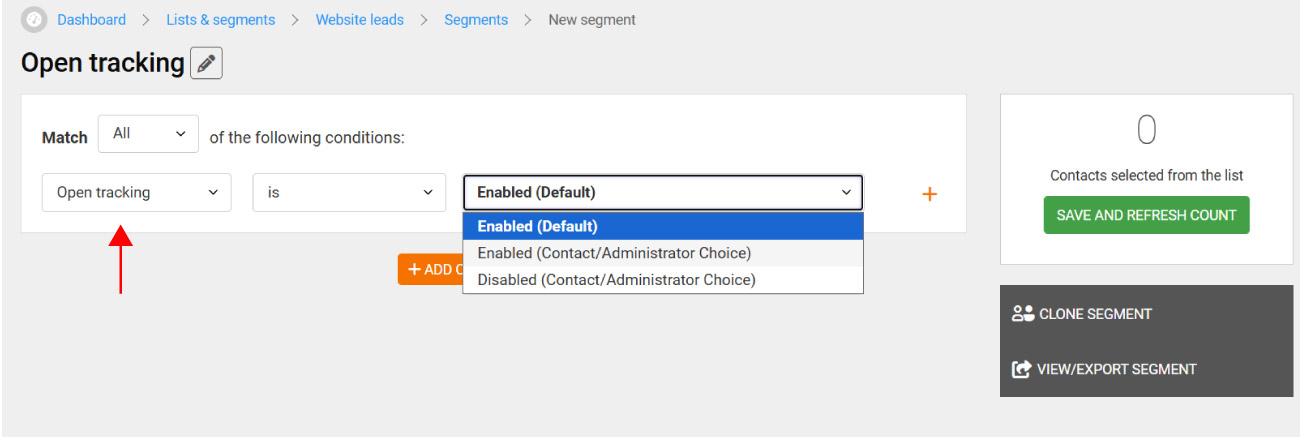
There are three statuses:
- Enabled (Contact/Administrator Choice): contacts who chose to be tracked, for example from the Update your preferences page.
- Disabled (Contact/Administrator Choice): contacts who chose not to be tracked. This is the segment to exclude from open-based Flows.
- Enabled (Default): contacts who have never made a choice, for example those who were already on your lists or that you imported. This is the segment to send the tracking pixel notice to.
You can combine this condition with any other condition you usually use.
How Flows work with untracked contacts
Since Emailchef can’t record opens for untracked contacts through the pixel, they’ll appear as “not opened” in your Flows, unless they click a link in the email, in which case an open may still be recorded.
If you use the Message opened entry point or the Message opened? event, these contacts will usually end up in the branch for people who didn’t open the email.
To avoid this and get the most out of your automations, you have three options:
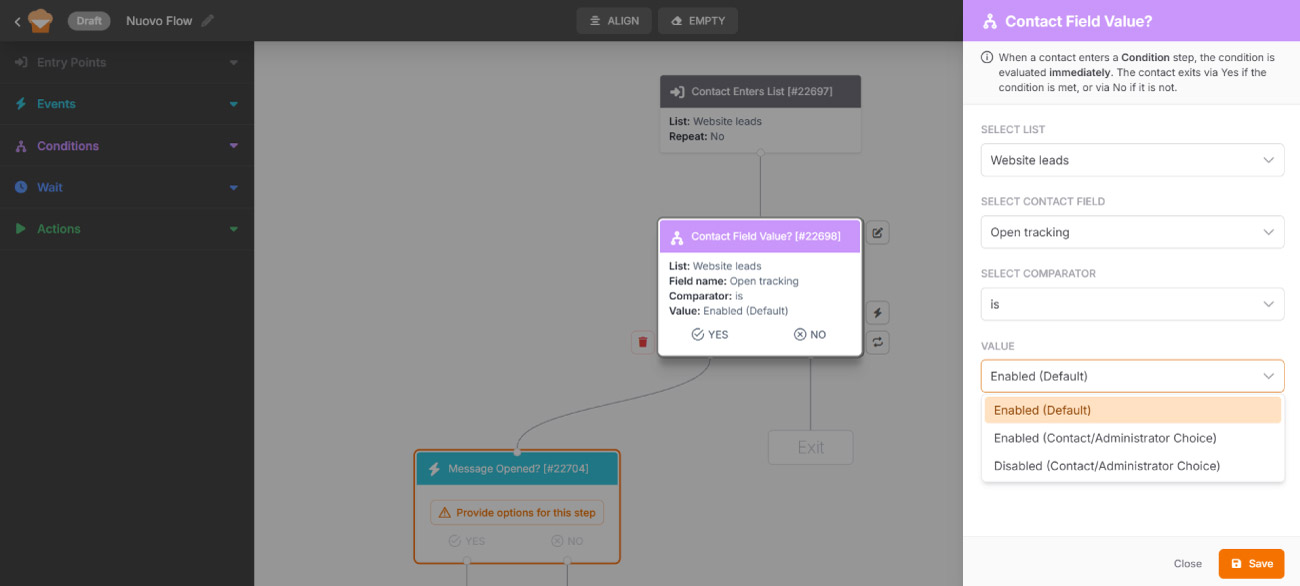
- Use the open tracking status directly in your Flow.
In entry points, conditions and events, choose Contact Field Value, select the list, then set Open tracking as the contact field, is as the comparator and the value you need: Enabled (Default), Enabled (Contact/Administrator Choice) or Disabled (Contact/Administrator Choice).
For example, before the Message opened? event, you can add a Contact Field Value? condition with the value Disabled (Contact/Administrator Choice). Contacts who turned off tracking exit via Yes and follow a dedicated path, while all the others exit via No and continue to the Message opened? event.
- Use a link click instead of an open.
The Link clicked in message event works for all contacts, including untracked ones, because clicks are still recorded as usual. - Exclude untracked contacts from the Flow.
Create a segment with the condition Open tracking is Disabled, as explained above, and use it to exclude these contacts from the Flow. This way, your open-based Flow only includes contacts whose opens you can record. If you want the others to receive your emails too, you can create a separate Flow for them, based on clicks, for example.
How to send a campaign without open tracking
This is new too: you can now choose not to track opens for an entire campaign. In that case, Emailchef doesn’t include the pixel in the emails sent to any recipient.
It’s the right choice for non-promotional communications, such as service notices or institutional communications.
To do this, create your campaign as usual. If you need a full tutorial, you’ll find one here 👇

In the campaign settings, you’ll find the Open tracking section with the option See who opens this campaign, which is ticked by default: untick it.
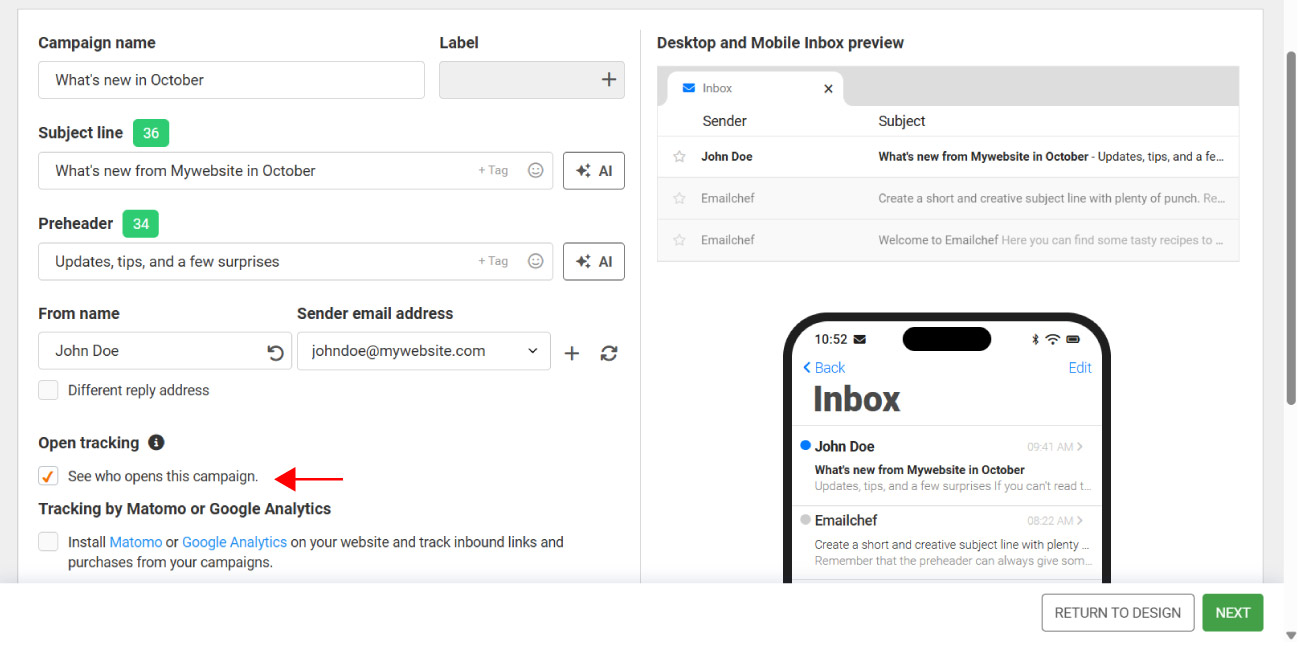
Then continue and send your campaign as usual.
You won’t see opens in this campaign’s report, while clicks will be tracked as usual.
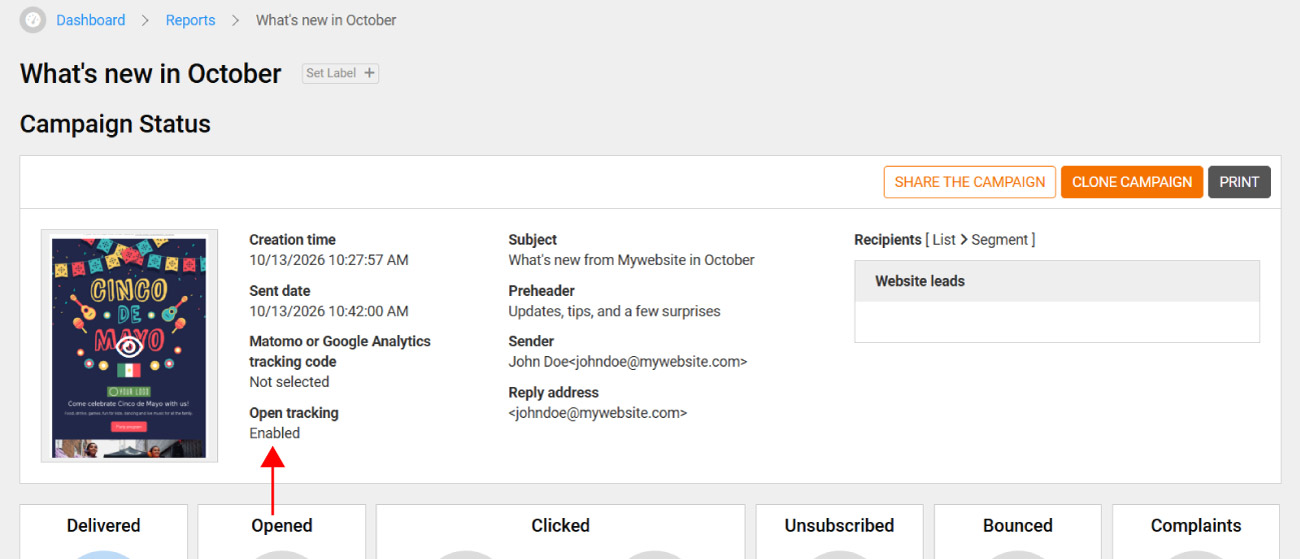
To check how a campaign was sent, go to Reports and open it: in Campaign Status, the Open tracking field shows whether tracking was Enabled or Disabled.
Tracking pixels: frequently asked questions
A tracking pixel is a tiny, invisible image added to an email. When the recipient opens the message and their email client loads images, the pixel is downloaded from the sender’s server, which records that the email was opened, along with details such as the time and the device used.
Each email includes a tracking pixel linked to the recipient. When the email is opened and images load, the pixel tells the email marketing platform that this person opened the message. Some email clients, such as Apple Mail, preload images automatically, so open data is never 100% accurate.
In most cases, yes. Under EU ePrivacy rules, tracking pixels that measure individual behavior generally require the recipient’s prior consent. Guidance from authorities such as Italy’s Garante and France’s CNIL also requires you to inform recipients and let them withdraw consent without unsubscribing. Requirements vary by country, so check with your privacy advisor.
Yes, as long as you inform recipients and, where required, collect their consent, while always letting them stop being tracked without unsubscribing. Emailchef already includes the tools to do this.
You don’t need to: Emailchef adds the tracking pixel to your campaigns automatically. It’s left out only for contacts who have turned off tracking, and for campaigns where you untick See who opens this campaign.
They click Update your preferences in the footer of any email and untick the box to stop being tracked. They can also choose to stay subscribed without tracking from the unsubscribe page. You can do it for them too, at their request, from the contact details.
No. Subscribers who turn off tracking stay subscribed and keep receiving your emails, just without the tracking pixel.
Yes. Turning off tracking only affects the pixel that records opens: clicks are still recorded for all contacts. If an untracked contact clicks a link, an open may also be recorded.
Because it’s calculated on all recipients, including those who turned off tracking and whose opens can’t be recorded through the pixel. To compare your campaigns, look at clicks too.
Yes, from the contact details. Only do it when the subscriber asks you to, and keep a record of their request.
Emailchef gives you the tools you need: the option to stop tracking without unsubscribing, automatic pixel exclusion and a history of each contact’s choices. You still need to update your privacy policy and let your existing subscribers know. The final assessment of compliance is up to you, as the data controller.
You’ll find a ready-to-use sentence in the section How to update your privacy policy and collect consent to tracking pixels on this page.
For a complete text, including purposes, legal basis and data retention, read our blog article on Tracking Pixel.