

Events are the elements that allow you to monitor and react to specific actions or behaviors of your contacts within a Flow. Unlike entry points, which start the automation, events pause the Flow and wait for a particular action to occur within a time frame you set.
If the event occurs within the given time, the Flow continues down the Yes path. If it does not occur before the deadline, the Flow automatically continues down the No path.
Below you’ll find all the events available in Emailchef, with a description of how each one works.
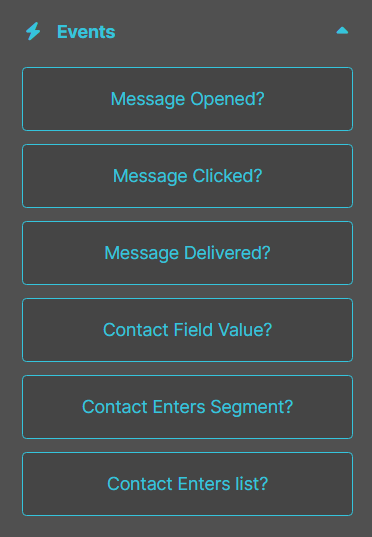
- Message Opened? Waits for a specific email to be opened by the contact. It’s useful for assessing engagement with your communication: if opened, the Flow continues down the Yes path and you can send an additional targeted offer; if not opened within the set time, it continues down the No path.
- Message Clicked? A click on a link within a specific email moves the Flow down the Yes path. It’s ideal for tracking interest in certain content: for example, you can wait for a registration link to a webinar to be clicked and, if clicked, automatically send more details about the event.
- Message Delivered? Verifies that a specific email has been successfully delivered to the contact’s inbox before the Flow continues. It’s useful to ensure future communications are triggered only after a successful delivery: for example, you can wait for your onboarding email to be delivered before sending a survey or a follow-up.
- Form Submitted? The contact filling out and submitting a form moves the Flow down the Yes path. It’s useful for intercepting the exact moment a contact takes a concrete action: for example, you can wait for a request form to be submitted and, if it is, automatically trigger a dedicated follow-up sequence.
- Contact Field Value? When a field in the contact’s profile takes on a specific value, the Flow moves down the Yes path. It’s perfect for personalizing automation paths based on changes in your contacts’ data: for example, you can wait for the “Status” field to change to “Customer” and, when it does, send a tailored welcome email.
- Contact Enters Segment? As soon as the contact is added to a specific segment, the Flow unlocks the Yes path. It’s useful for dynamically tracking which groups your subscribers belong to: for example, you can wait for a contact to enter the “VIP Customers” segment and, if it happens, trigger an exclusive communication Flow.
- Contact Enters List? A contact subscribing to a specific list moves the Flow down the Yes path. It’s particularly useful when managing parallel subscriptions to different lists: for example, you can wait for a newsletter subscription and, once it happens, automatically launch a welcome email series.