Custom Blocks are your personal block library. Save any block you build in the editor, organise it into categories, and reuse it across any newsletter.
What Custom Blocks are and how they help you save time.
Many newsletters include recurring elements that appear in every campaign: a branded header, a promotional banner, a footer with social links. The Custom Blocks feature lets you save those blocks into a personal library so they can be reused in any future template, without having to rebuild or reconfigure them each time.
Saved blocks are organised into categories that you create and name, for example “Headers”, “Footers”, or “Promos”. Each block retains its original content and styling, and can be dragged into any template just like any other block in the editor.
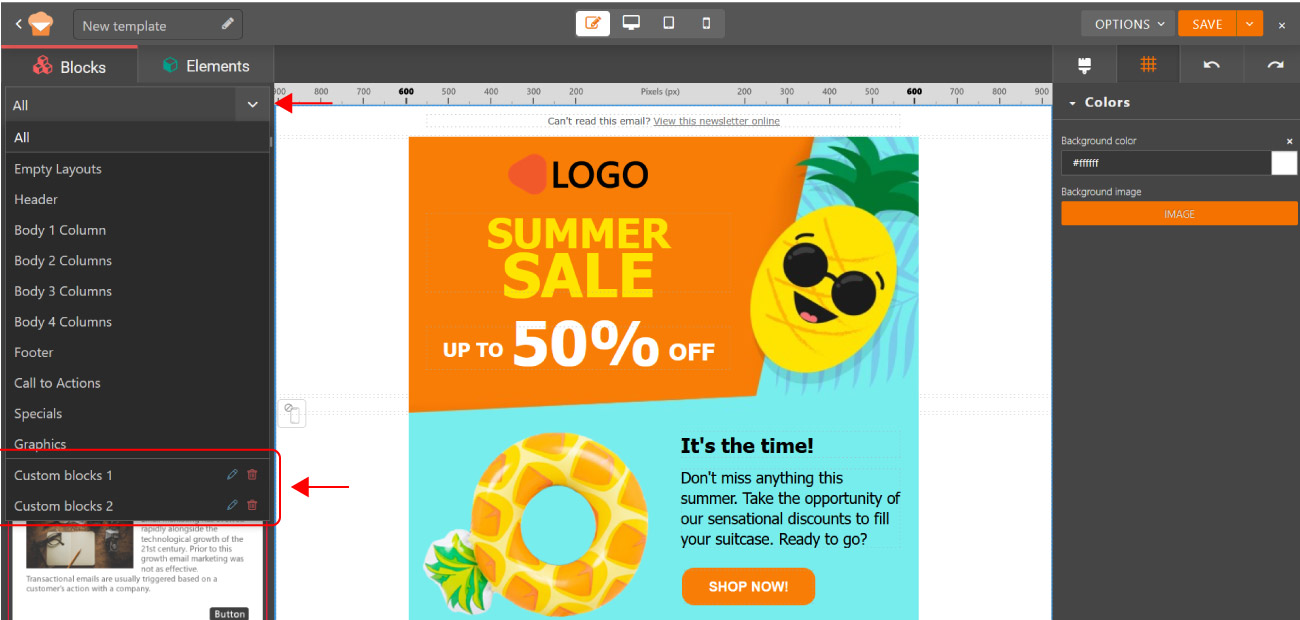
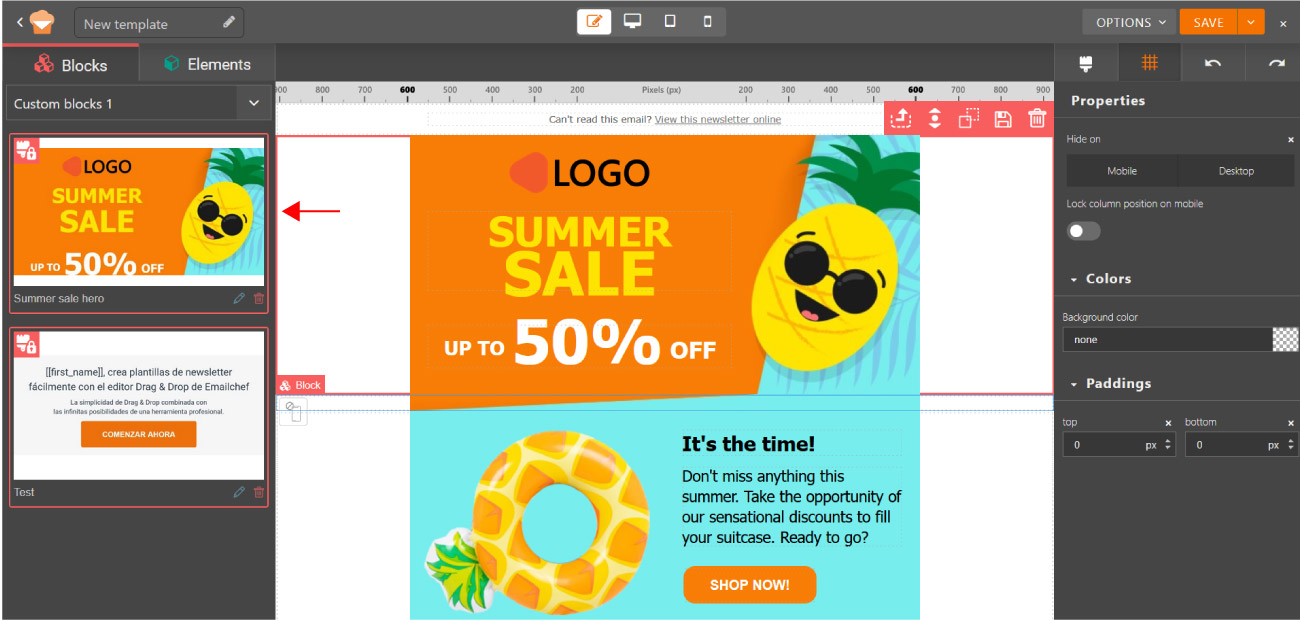
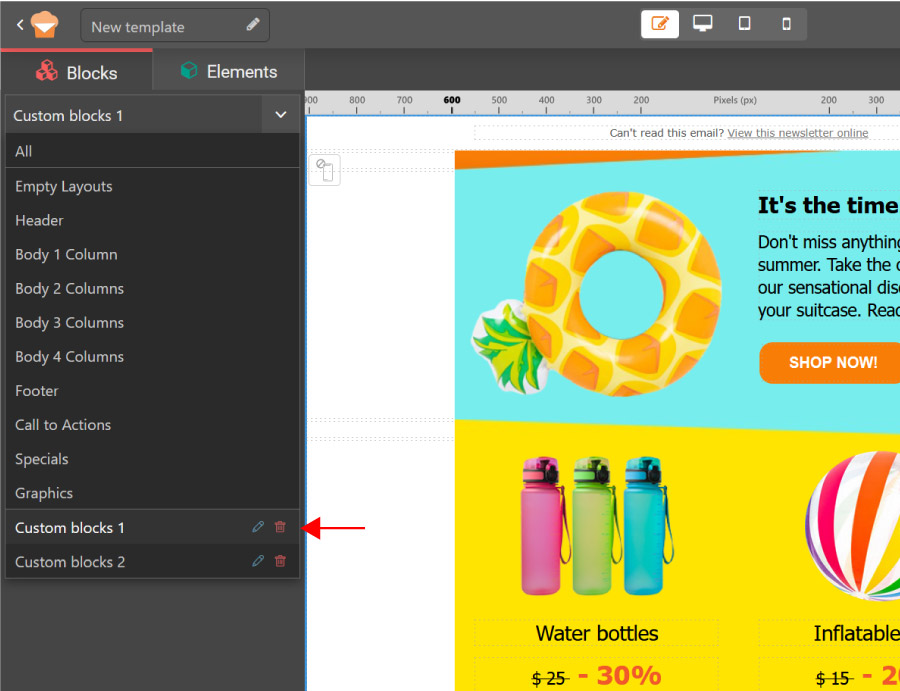
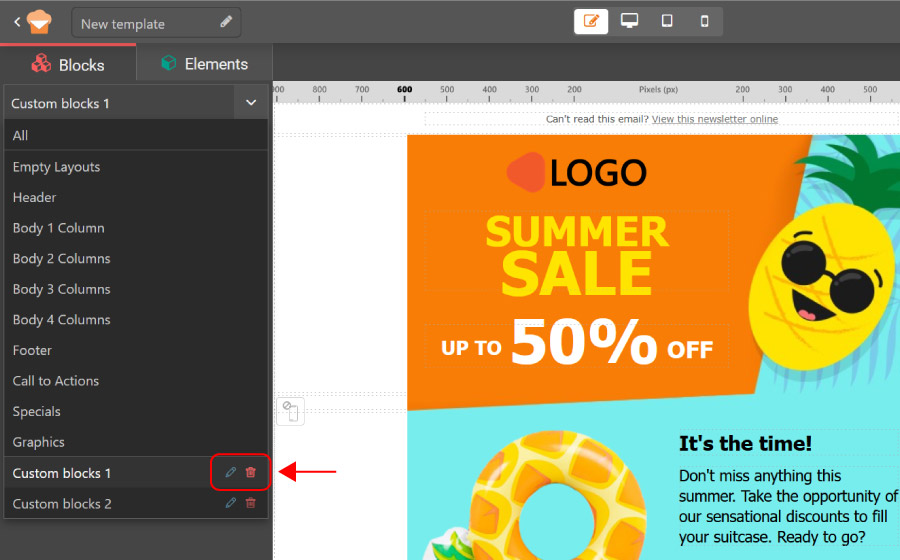
Your saved blocks are available in the Blocks sidebar inside the drag&drop editor. Open the dropdown menu and scroll to the bottom of the list to find them.
How to save a custom block.
To save a block to your library:
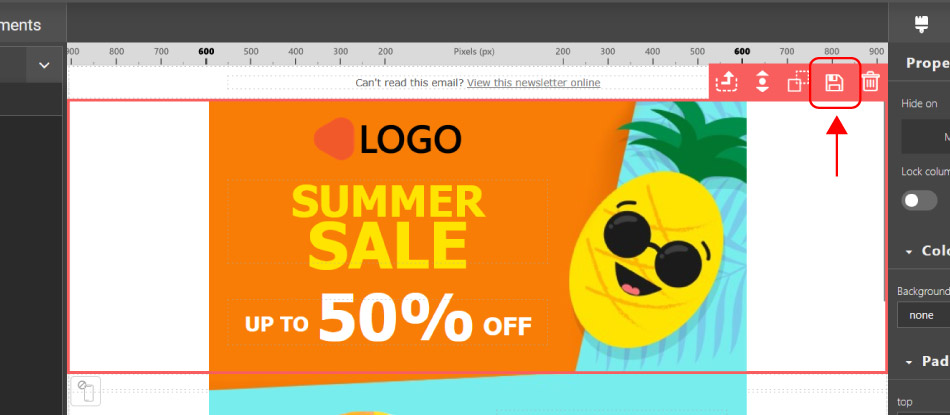
1. Select a block and click the Save icon: click any block in the working area and a toolbar will appear above it. Then, click the floppy disk icon (💾) to open the Save block pop-up.
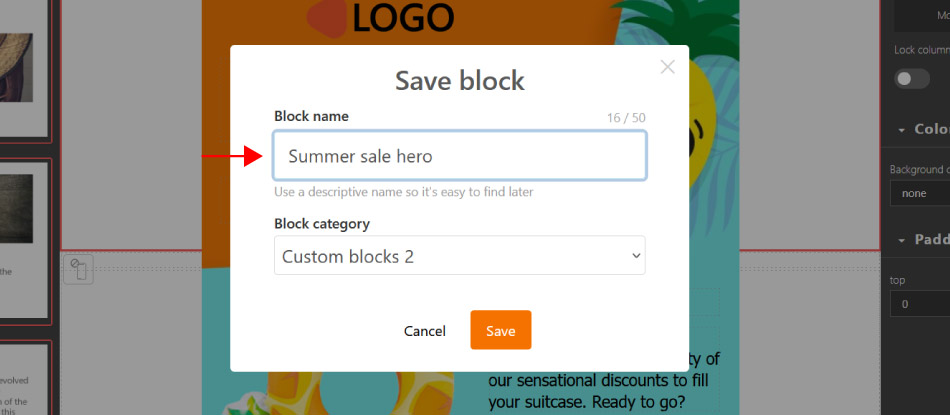
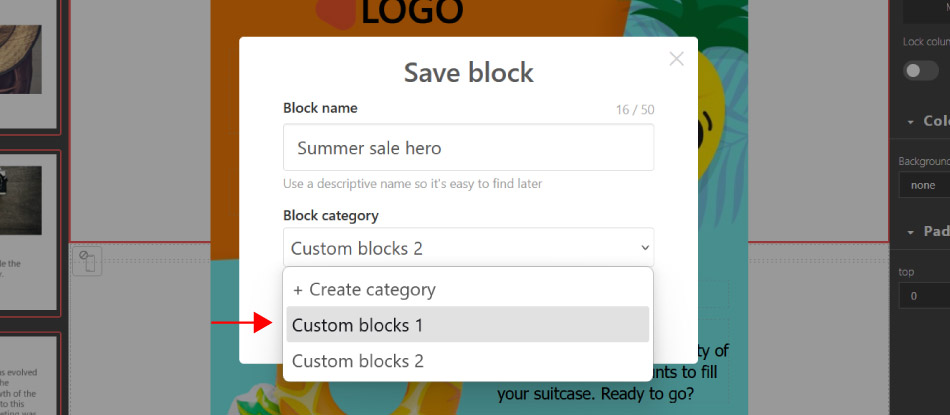
2. Name the block: enter a descriptive name, up to 50 characters (for example: “Summer sale hero” or “Footer with social links”).
3. Assign a category: categories help you keep your library organised.
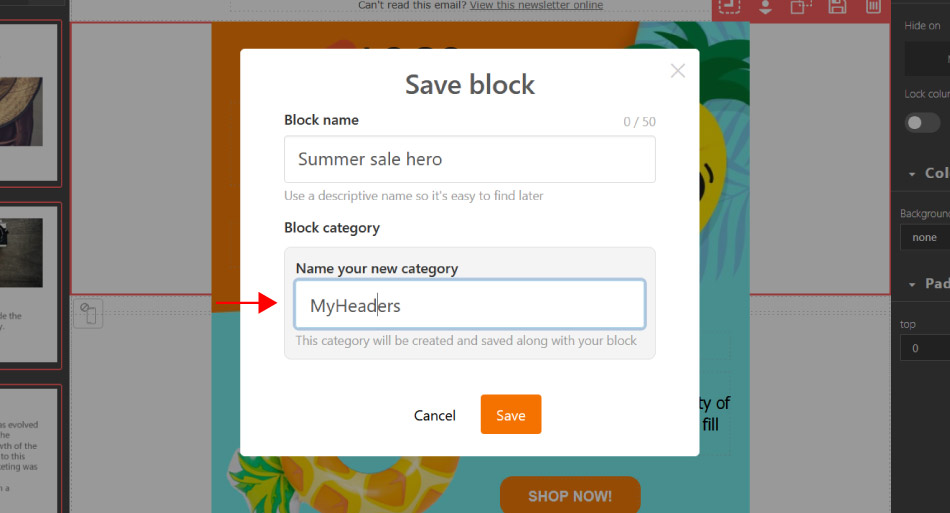
- If this is your first time saving a block, you will be asked to create a new category (for example: “MyHeaders”, “MyFooters”, “MyPromos”).
- If you have already saved blocks before, you can either select an existing category or create a new one.
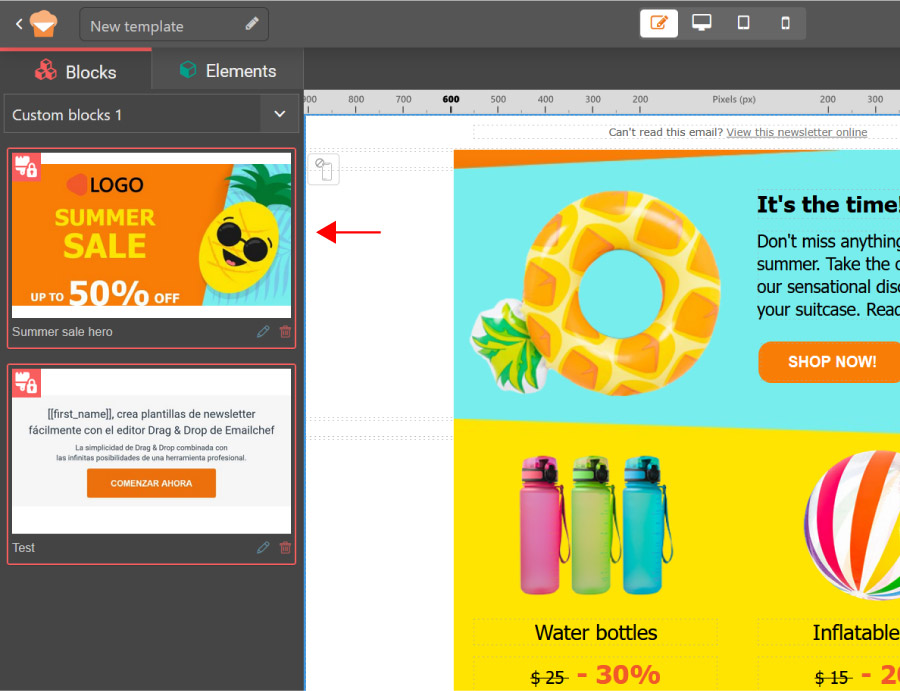
4. Save: click Save to confirm. The block will immediately appear in the Blocks sidebar under the chosen category, complete with an automatically generated preview image.
Managing your saved blocks and categories.
1. Renaming or moving a block.
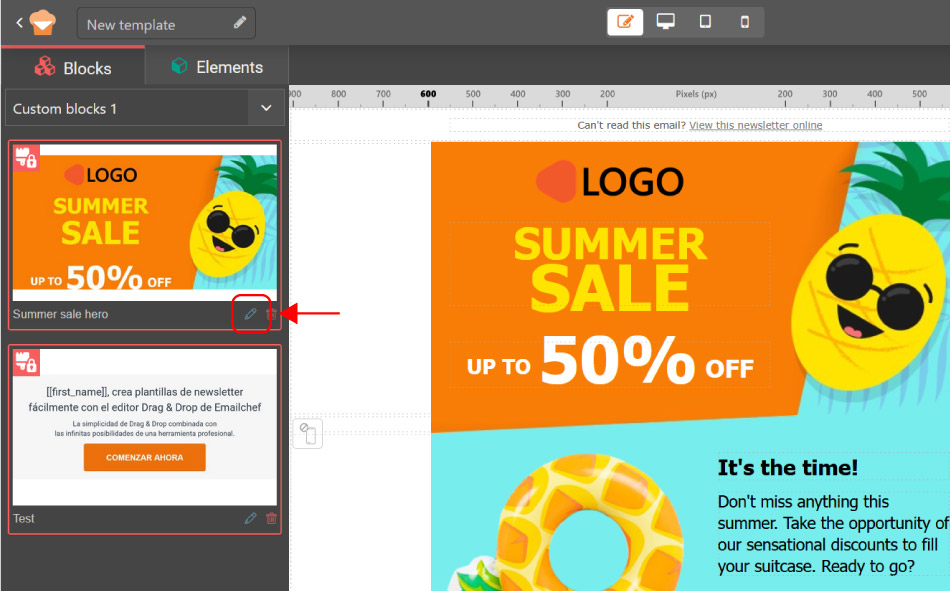
Within each category, each saved block shows a pencil icon (✏️).
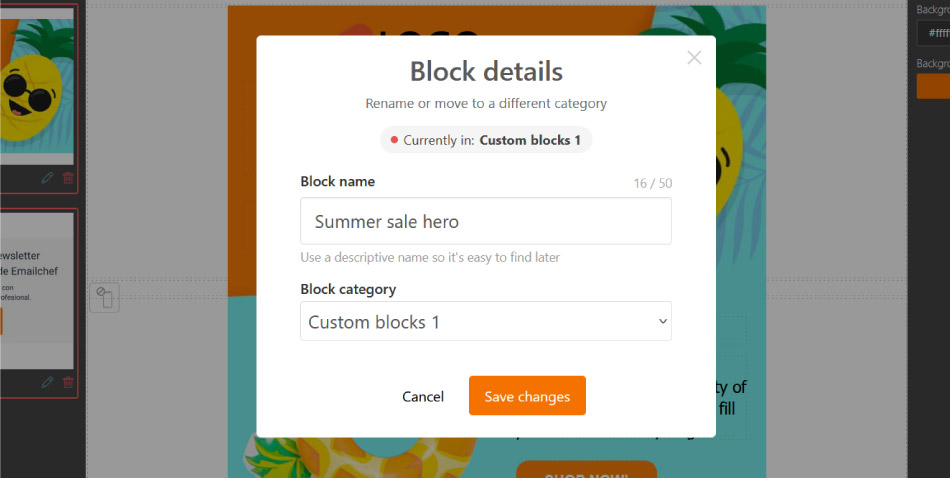
Click it to:
- rename the block;
- move it to a different category.
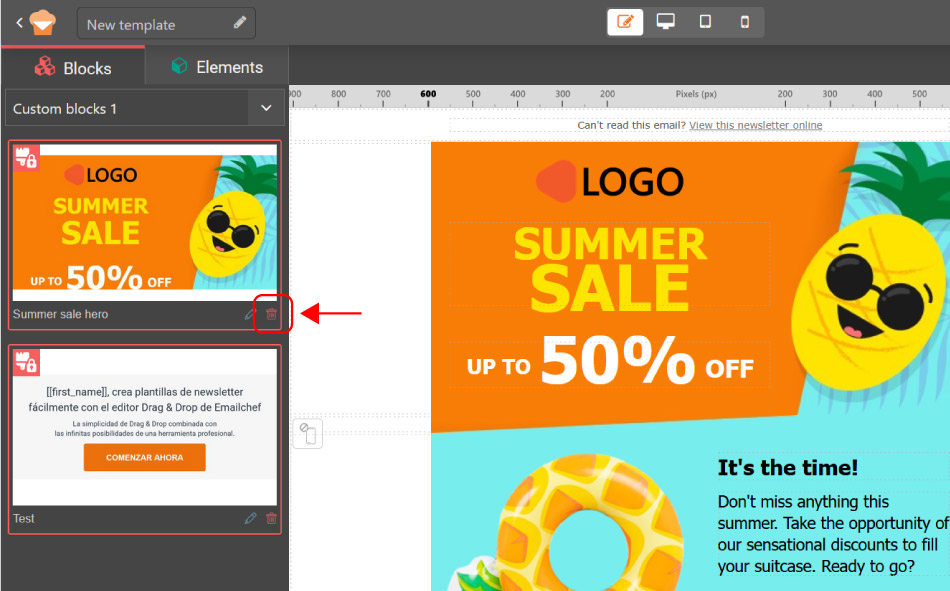
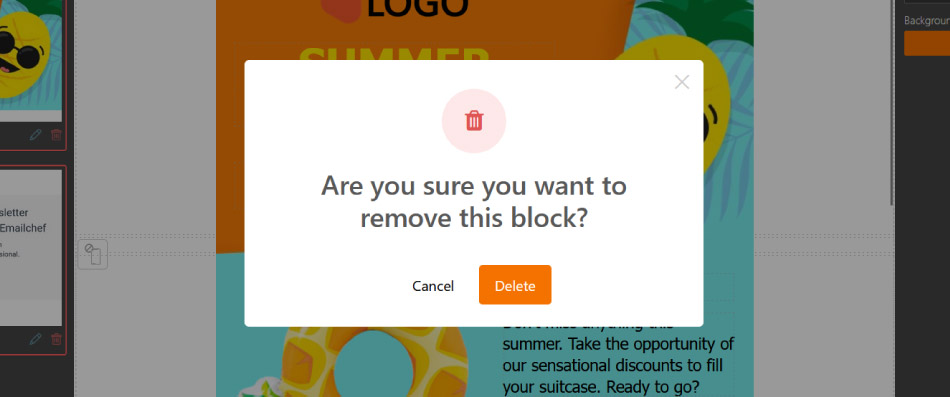
2. Deleting a block.
Click the trash icon (🗑️) next to any saved block to delete it permanently.
3. Managing categories.
Categories can be renamed or deleted directly from the category dropdown panel.
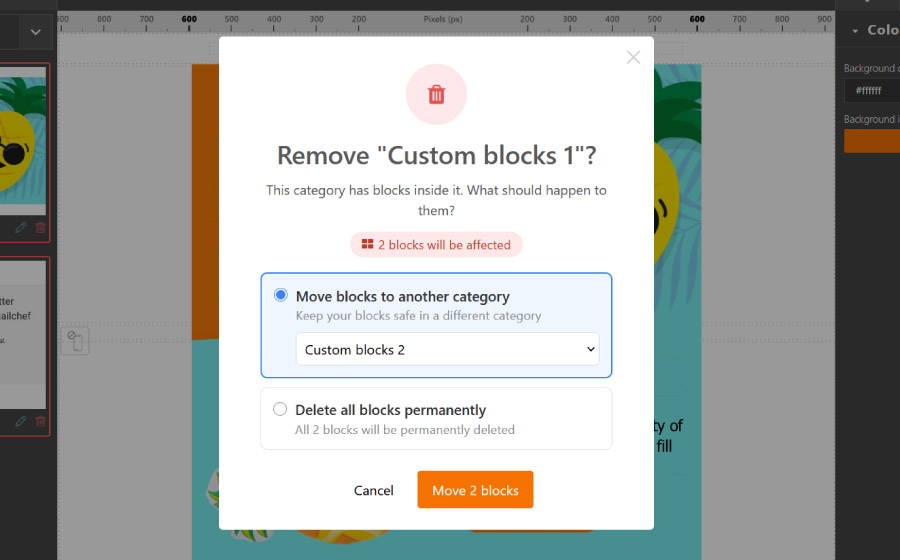
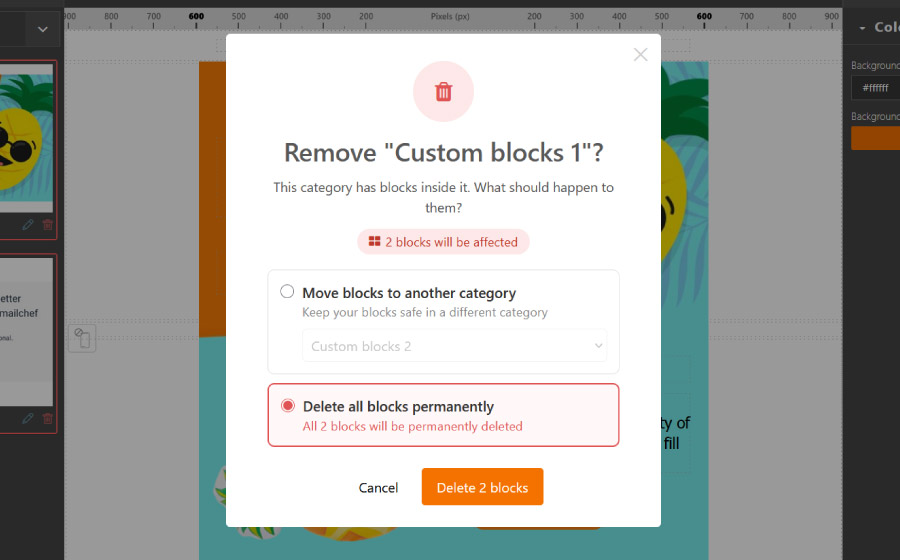
When deleting a category that contains blocks, you will be prompted to choose one of two options:
- Move the blocks to another existing category;
- Permanently delete the category and all its blocks.