


Entry points are the triggers that kick off an email marketing automation Flow. In other words, they define the exact moment a contact enters your automated workflow: after subscribing to a list, submitting a form, on a recurring date, or following an event from an external system.
Each entry point corresponds to a specific event: once that event occurs, the contact is automatically added to the Flow.
Below you’ll find all the entry points available in Emailchef, with a description of how each one works.
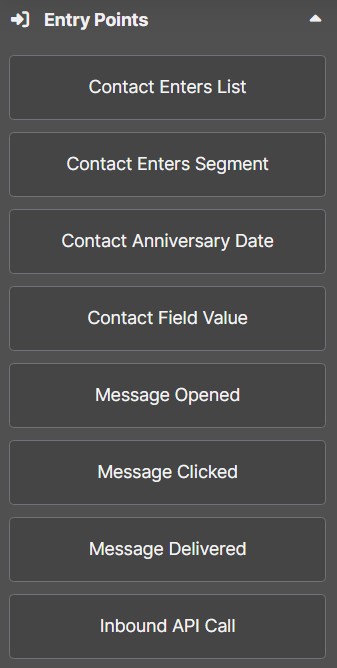
- Contact enters list: triggered whenever a contact is added to a list, regardless of how it happens — through a signup form, file import, or manual addition. It’s particularly useful for automatically starting a welcome flow, onboarding sequence, or any other automation designed for new contacts.
- Contact enters segment: when a contact becomes part of a segment (a dynamic group of contacts who share specific characteristics or behaviors) the Flow starts automatically. This could include, for example, users who opened a particular email, clicked a link, or live in a specific geographic area. It’s useful for triggering targeted automations based on your contacts’ profiles or actions.
- Contact Submits Form: triggered when a contact fills out and submits a signup form. Useful for automatically starting a Flow at the exact moment a new contact expresses interest, for example with a welcome or onboarding sequence.
- Contact anniversary date: on a specific date associated with the contact (such as their subscription date, birthday, expiration date, or any other custom date field) the Flow starts automatically. You can choose to trigger it exactly on that date, or a set number of days before or after. Ideal for sending recurring messages, reminders, or personalized greetings.
- Contact field value: as soon as a contact field changes and meets a condition you’ve defined, for example the “Status” field becomes “Customer”, the Flow triggers automatically. It’s useful for automating actions based on updates in your contacts’ data, allowing you to send targeted communications at the exact moment something changes in a contact’s profile, making your automations more relevant and timely.
- Message opened: a contact opening one of your emails is enough to start a Flow. Useful for reaching your most engaged contacts with targeted communications based on their level of interest, for example a follow-up with a special offer, related content, or an invitation to learn more about the topic of the opened email.
- Message clicked: a contact clicking a link inside one of your emails triggers the Flow automatically. It lets you act on the contact’s interest at the exact moment it’s expressed and send targeted communications based on the content they engaged with, for example a deeper dive into the topic, a related promotion, or a dedicated sequence for contacts who showed interest in a specific product.
- Message delivered: the successful delivery of one of your emails to a contact’s inbox triggers the Flow. Useful for scheduling a follow-up sequence, for example a follow-up a few days later, a reminder in case the email isn’t opened, or an action on an external system via webhook.
- Inbound API call: when an external system (such as an e-commerce platform, a CRM, or any other application) sends data to Emailchef via an API call, the Flow starts immediately. It’s the most flexible entry point: it lets you connect Emailchef to any platform and trigger automations in real time in response to external events, such as a completed purchase, a form submission, or an update in your management system.
Repeat flow and exit criteria
All entry points include two additional options: Repeat flow and Exit criteria. The first controls whether and when a contact can go through the Flow more than once; the second defines the conditions that end the Flow early.
Repeat flow.
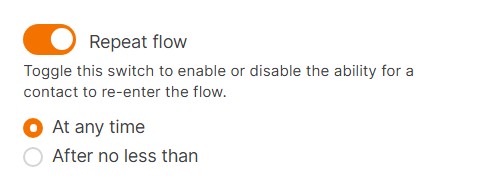
By default, the Repeat flow switch is turned off, meaning a contact can go through the Flow only once. This is the right setup for flows like welcome sequences triggered after a subscription.

Enabling the Repeat flow option allows the contact to re-enter the Flow every time they meet the entry condition. It’s useful for recurring flows, such as sending a birthday email every year.
When Repeat flow is enabled, you can also set a minimum time interval before the same contact can re-enter.
You have two options:
- the Flow can restart at any time, meaning it triggers every time the contact meets the entry condition;
- or after no less than […], allowing you to set a minimum interval (minutes, hours, days, or weeks) before the contact can re-enter
Exit criteria.
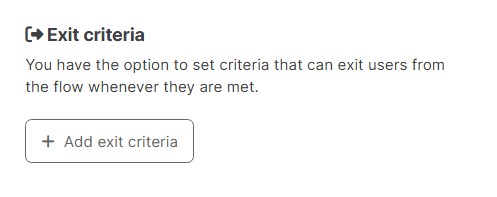
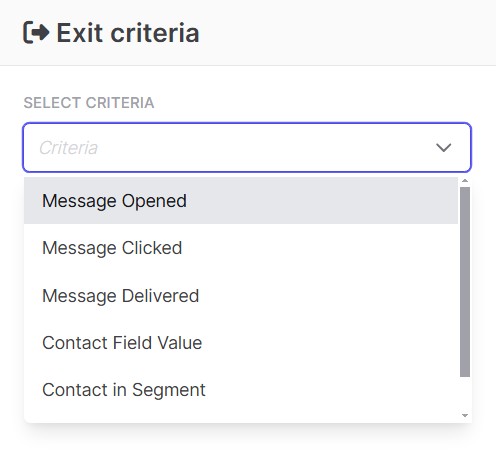
You can choose from the following conditions:
- Message Opened: the Flow ends as soon as the contact opens a message. Useful if you want to send reminders only until the main email has been read.
- Message Clicked: the contact exits the Flow as soon as they click a specific link. Perfect for stopping promotional automations once the user has already shown interest or completed an action.
- Message Delivered: the exit occurs when the message is delivered to the contact’s inbox, regardless of whether it’s opened. Useful for sequences where delivery alone is enough to stop the Flow.
- Form Submitted: the Flow ends as soon as the contact submits a form. Useful for stopping an acquisition sequence the moment the contact has already completed the desired action.
- Contact Field Value: the Flow ends if a field in the contact’s profile takes on a specific value, for example “Status = Customer”. Great for automatically transitioning from an onboarding Flow to one designed for active customers.
- Contact in Segment: the contact exits the Flow as soon as they enter a specific segment. Helps keep your automations aligned with the dynamic groups you’ve created.
- Contact in List: the exit is triggered when the contact is added to a specific list (for example “VIP” or “Active Customers”) so they no longer receive communications intended for other groups.
👉 In practice, exit criteria help you keep your Flows clean and targeted, ensuring a contact never receives emails that are no longer relevant to their situation.