Emailchef gives you full control over your Flows: you can inspect the preview of your automations, customize and activate Flows from the editor, and keep an eye on results in real time.
Preview mode: explore the structure and configuration of a Flow
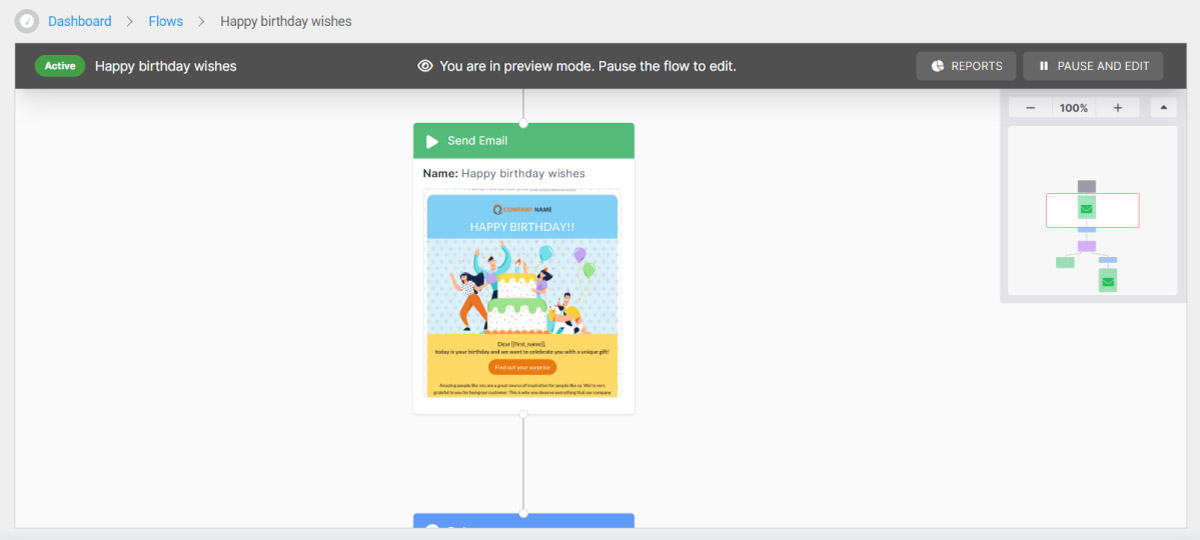
With the Preview mode you can open and review any Flow whenever you want.
View the preview of an active, paused, or draft Flow, scroll through the structure, and read the configuration of each step in detail.
How to open the preview of a Flow
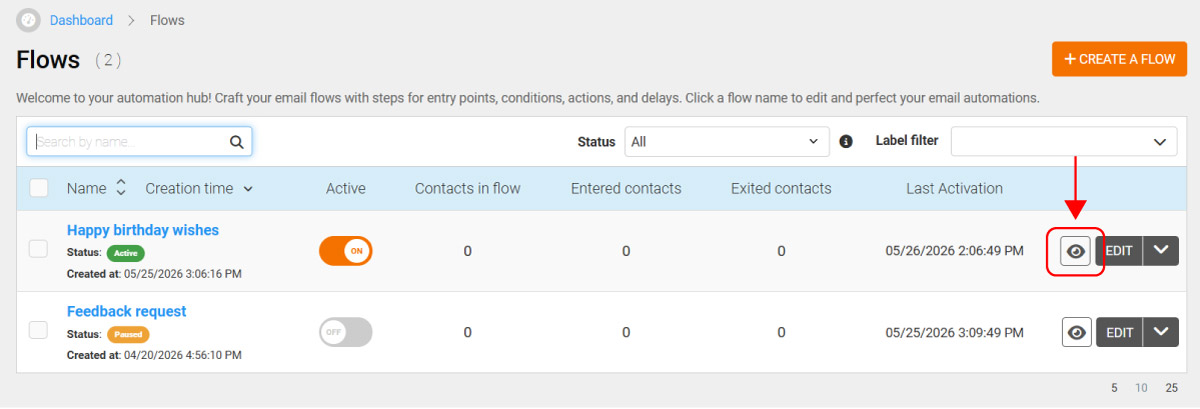
From the Flow list, click the eye icon Preview Flow next to the automation you want to inspect.
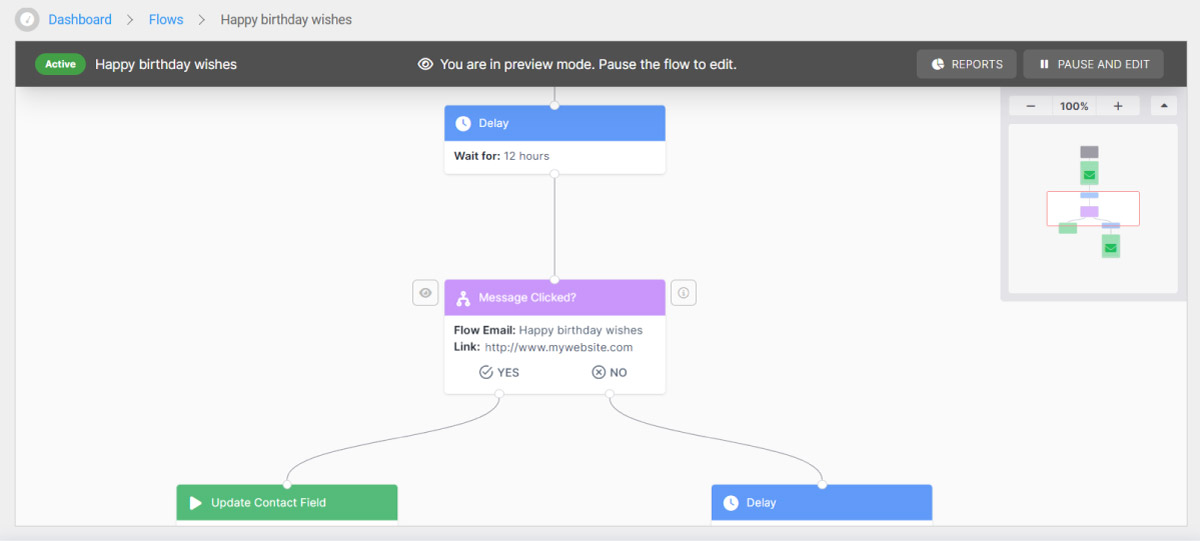
The Flow opens in read-only mode: you can freely navigate between steps, open them, and read their full configuration.
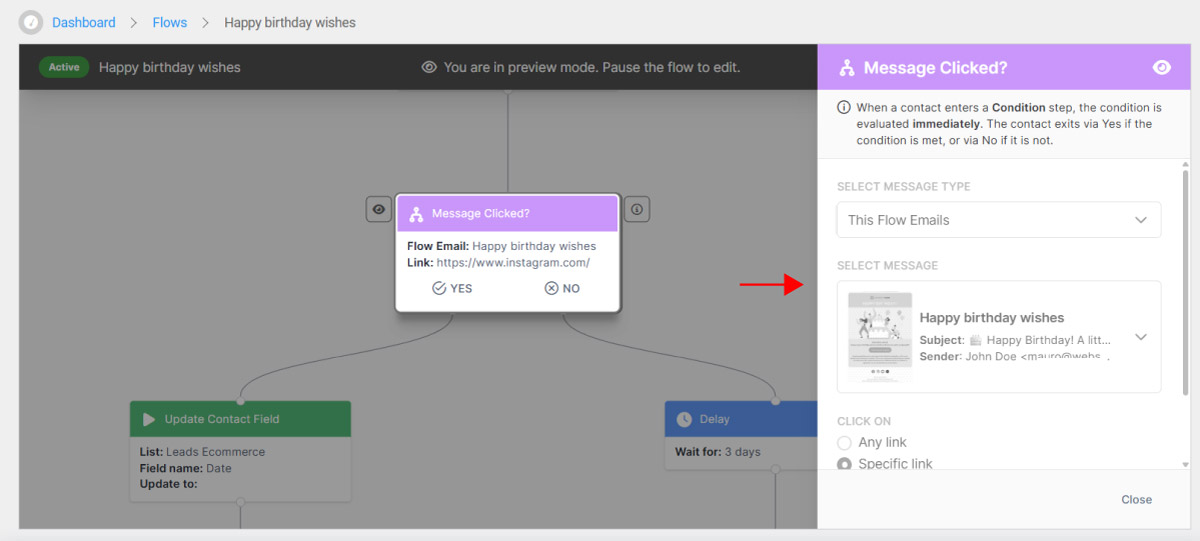
You can access the details of each individual step with a double-click or by clicking the View details icon that appears on the right when you hover over a step.
What you can do in preview mode ✔️
In preview mode you have a complete view of the Flow:
- see the entire structure at a glance, with all steps and connections;
- open any step and read its configuration in detail;
- navigate the Flow smoothly using the mouse wheel;
- access Flow reports or edit mode directly from this screen.
What you can't do in preview mode ❌
The steps in your Flow are in read-only mode. This means you cannot move them, add new ones, delete them, or change their parameters.
If you want to make changes to an active Flow, click Pause and edit to switch to edit mode.
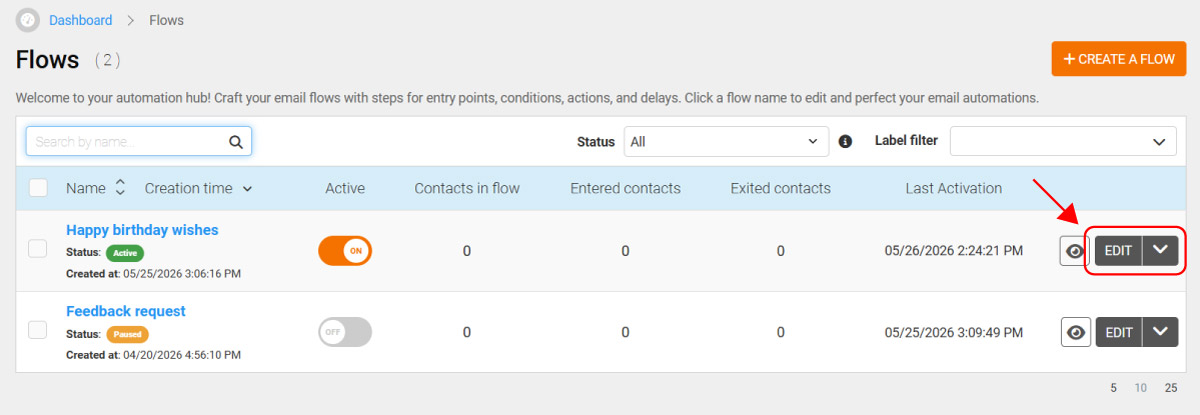
If the Flow is not active and you want to edit it, click the Edit button.
Edit: update the Flow and activate it from the editor
With Edit mode you can make changes to the Flow, update settings, and activate it without leaving the editor.
You’ll find a step-by-step tutorial below.
How to access Edit mode
You can enter Edit mode in two ways:
- from the Flow list, by clicking the Edit button next to the Flow;
- from the Flow preview, by clicking Pause and edit (for active Flows), or Edit (for paused or draft Flows).
Editing the steps of a Flow
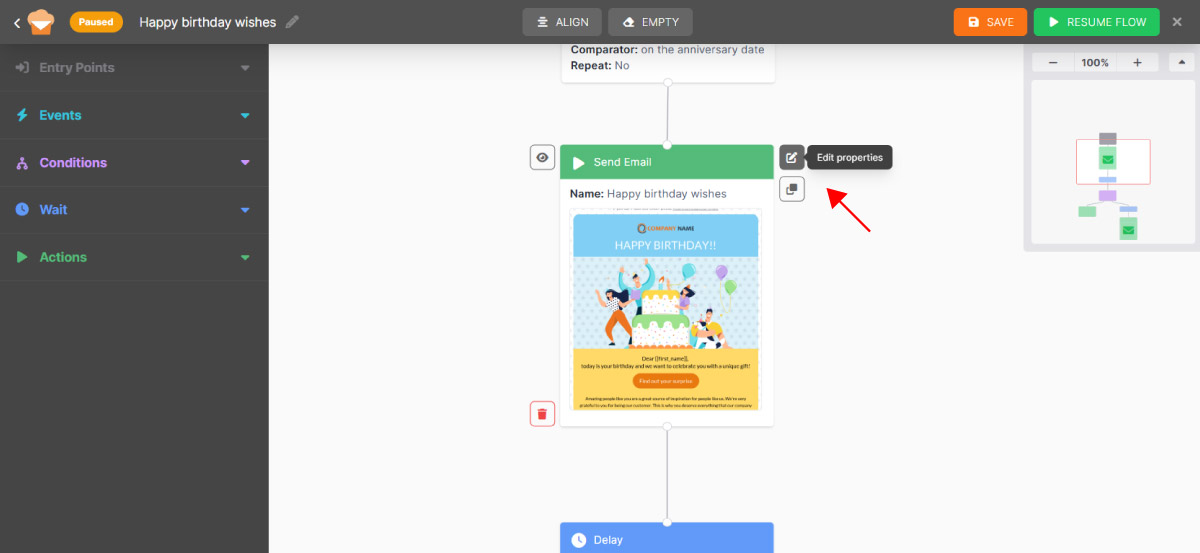
Inside the editor you can add, move, and delete steps. You can also edit their parameters by double-clicking the step you want, or by clicking the edit icon next to each step.
All changes made to your Flow are saved automatically.
Activating (or reactivating) the Flow from the editor
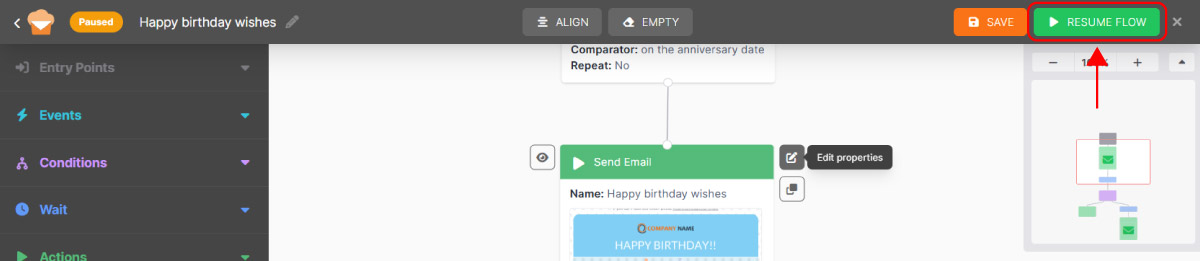
When you’re done editing, you can activate (or reactivate) the Flow directly from the editor. Click the Activate Flow or Resume Flow button (if your Flow is paused) in the top right corner: the automation is now active.
ℹ️ Error messages: clear guidance on what to fix
If a Flow cannot be activated, Emailchef guides you to the solution.
If you try to activate an incomplete Flow from your automations list, a warning will appear letting you know the automation cannot be activated.
Click Review Flow to go directly into Edit mode.
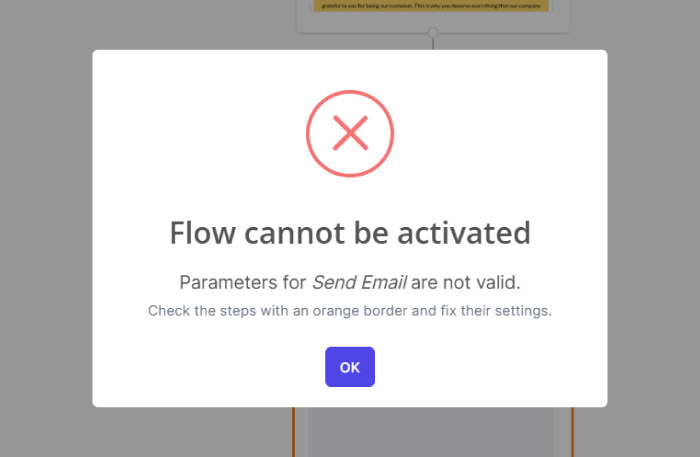
If you try to activate an incomplete Flow inside Edit mode (by clicking Activate Flow), you’ll see a message with all the details about the error.
How to read an error message
Each message contains three pieces of information:
- Which step has the issue (e.g. Step 3 — Send email)
- What the issue is (e.g. No email selected)
- What to do to fix it (e.g. Select an email template to continue)
How to fix steps with errors
To fix your Flow, follow these steps:
- Go to Edit mode to update the Flow.
- Find the flagged step and open it with a double-click.
- Complete or correct the missing configuration.
- Click Activate Flow to start the automation.
Statistics and reports: Flow data always at your fingertips
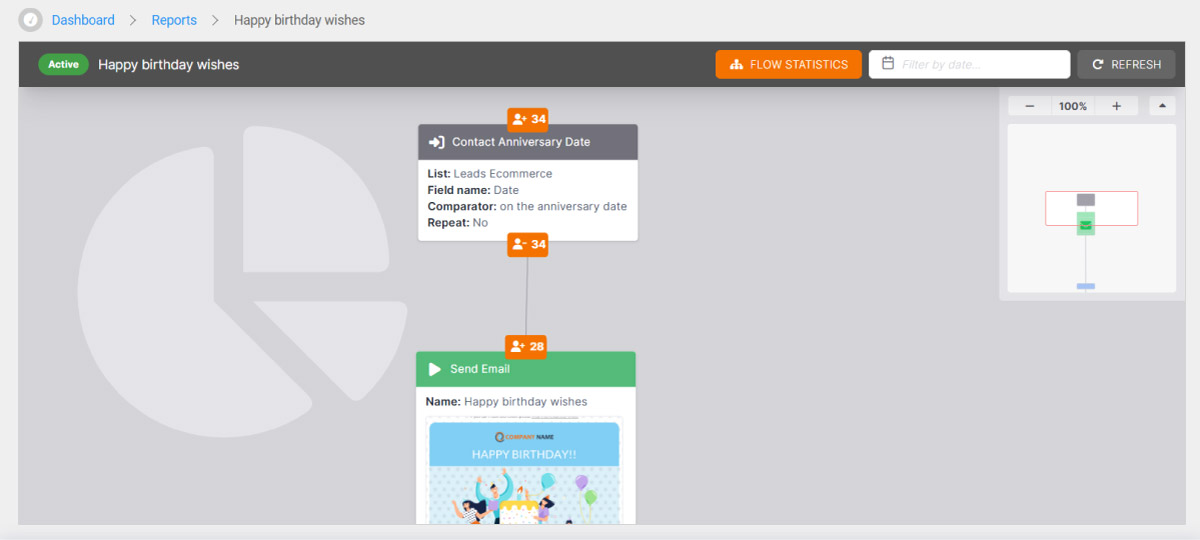
The report shows you the complete statistics of a Flow: how many contacts have gone through it, how many emails were opened, how many clicks were recorded, and the performance of each individual step.
How to open the report and view statistics
You can access a Flow’s report in three ways:
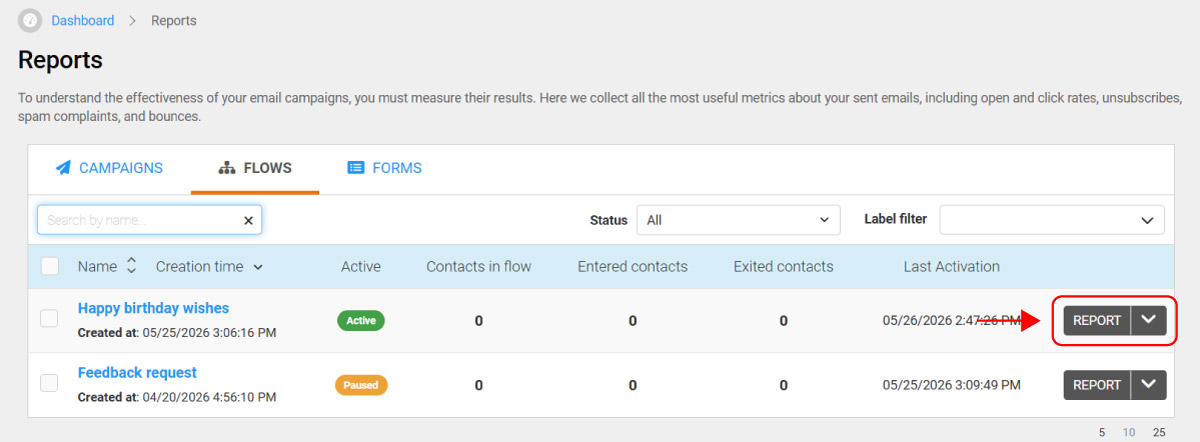
- From the Reports section: click the Flows tab and then click the REPORT button next to the Flow you want to analyze.
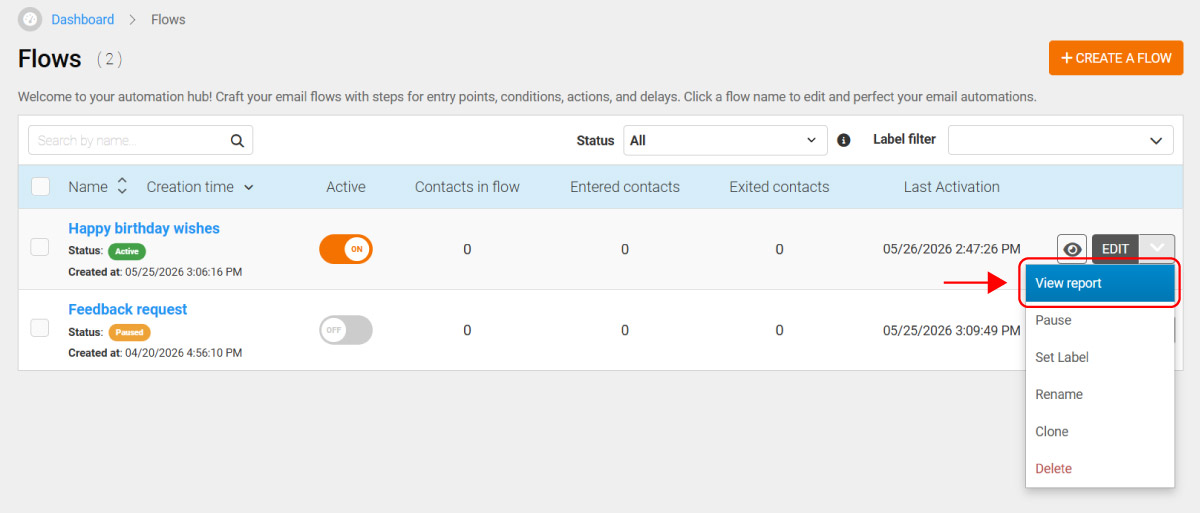
- From the Automations section: on the right side of the row for the Flow you want to analyze, open the dropdown menu and click View report.
- From the Flow preview: click Reports in the top right corner.
What you'll find in your Flow reports
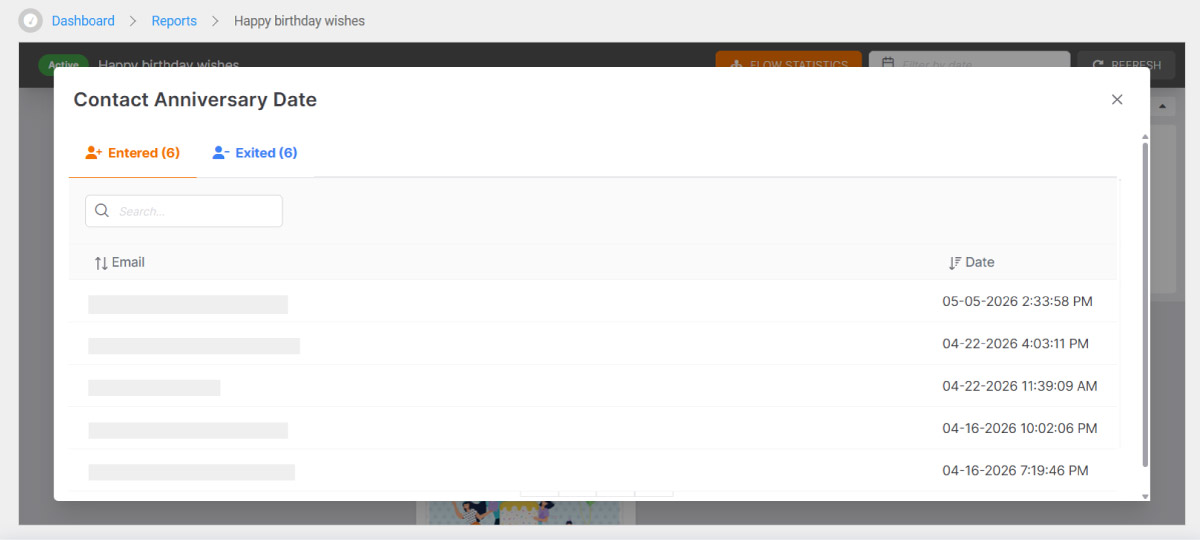
For each step, the report shows the key metrics: contacts entered, opens, clicks, and contacts exited. This lets you understand where contacts drop off and which parts of the Flow perform best.
In addition, for each email in the Flow you can see all the metrics in detail by clicking View full report.