



In this guide you’ll find everything you need to use placeholders in Emailchef: how to insert them in the editor, which formatting filters are available, and how to set a default value for empty fields.
Dynamic placeholders: what they are and what they are used for.
Placeholders are dynamic elements that allow you to automatically personalize the content of your emails by inserting recipient-specific data.
Thanks to this feature, you can include information such as first name or last name directly in your message, making each email unique and relevant to the recipient.
By using placeholders you can:
- increase recipient engagement by sending personalized messages;
- save time by avoiding manually editing each individual email;
- ensure consistency and professionalism by automatically inserting accurate data into your messages.
💡 An important note before using placeholders
Before using a placeholder, you need to have already collected the data you want to insert. For example, if you want to use a placeholder with the recipient’s city, you must have asked users to provide this information.
To do so, follow these steps:
- Create a custom field for the data you want to collect (e.g., city).
Learn how to create a custom field 📝
- Add the field to your sign-up form so that users can fill in the information.
Learn how to create a sign-up form 📋
- Use the placeholder in the email, this way the value will automatically be replaced with the data provided by the recipient.
How to Insert a Custom Placeholder
To use Emailchef placeholders, start by opening the drag-and-drop editor and select the text block where you want to add the placeholder.
At the top, in the center of the workspace, you’ll find a dropdown menu called Add placeholder: click on it to choose the field you want to insert.
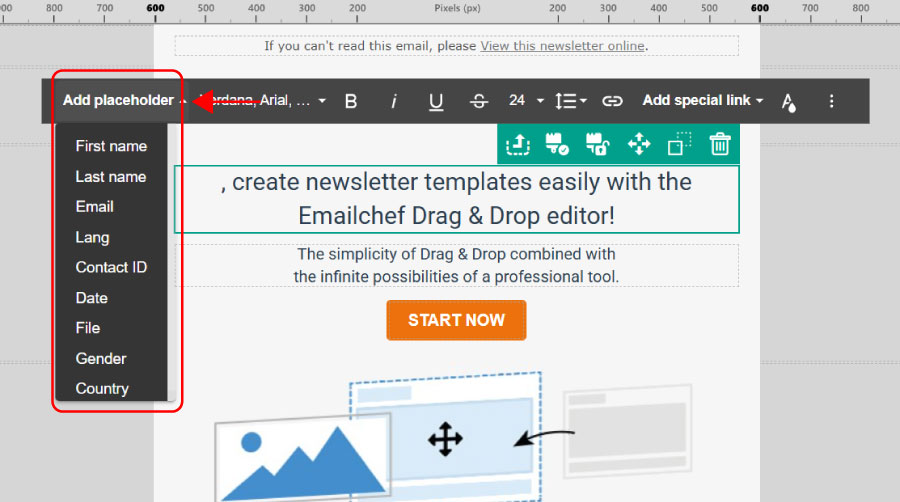
Inside this dropdown menu you will find all the custom fields you have created for your lists.
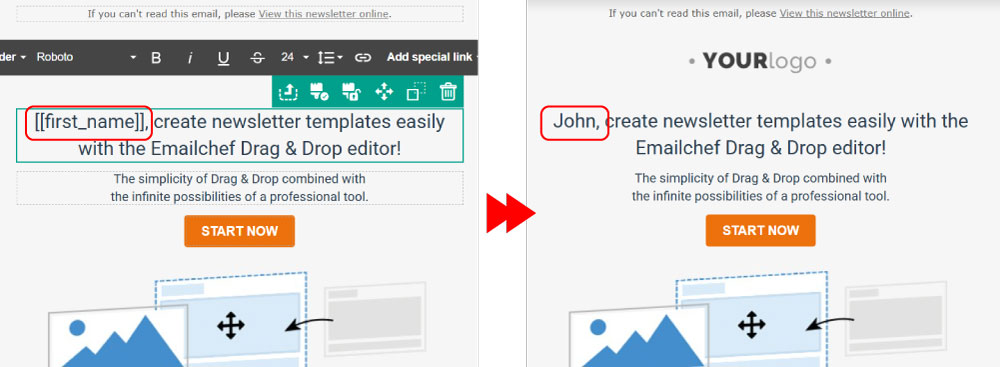
Once added, the placeholder will automatically be replaced with the corresponding value for each recipient. For example, if you insert the placeholder [[first_name]], when the newsletter is sent, this space will be replaced with the user’s real name.
Placeholder Formatting Filters
Emailchef provides formatting and data correction filters that allow you to automatically modify how placeholder values are displayed in emails.
This feature is particularly useful when data collected from users is not uniform, for example, names written entirely in lowercase, entirely in uppercase, or with mixed capitalization.
Filters are applied directly to placeholders using the pipe | syntax followed by the desired function.
These tools only affect how the value is displayed within the email, without modifying the original data stored in the contacts database.
The available filters are:
|capitalize→ converts the first letter to uppercase and the rest to lowercase (e.g., jOHN → John);|uppercase→ transforms all text to uppercase (e.g., John → JOHN);|lowercase→ transforms all text to lowercase (e.g., John → john);
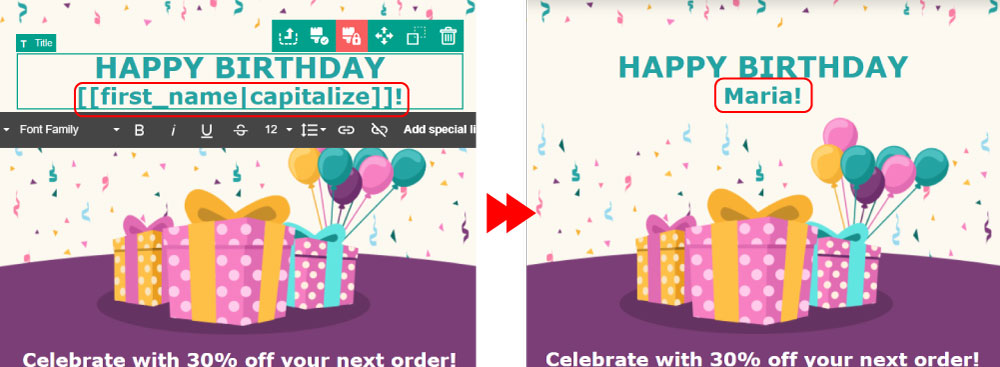
These filters can be used with any custom field and are applied automatically at the time the email is sent, ensuring a cleaner, more consistent, and more professional display.
This way you can standardize names, surnames, and other important data, improve readability and the recipient’s experience, and make emails more polished and refined, even when the data entered by users is not perfect.
💡A useful tip
In many cases, using the |capitalize filter is recommended for first and last names, as it produces a readable and professional result in the most visible parts of the email, such as opening greetings or personalized headers.
Default Value Filter for Placeholders
In addition to formatting filters, Emailchef allows you to use the |default filter to define a fallback value in case a field is empty or missing.
This feature is very useful for preventing placeholders from appearing blank in emails and for always keeping the message natural and complete.
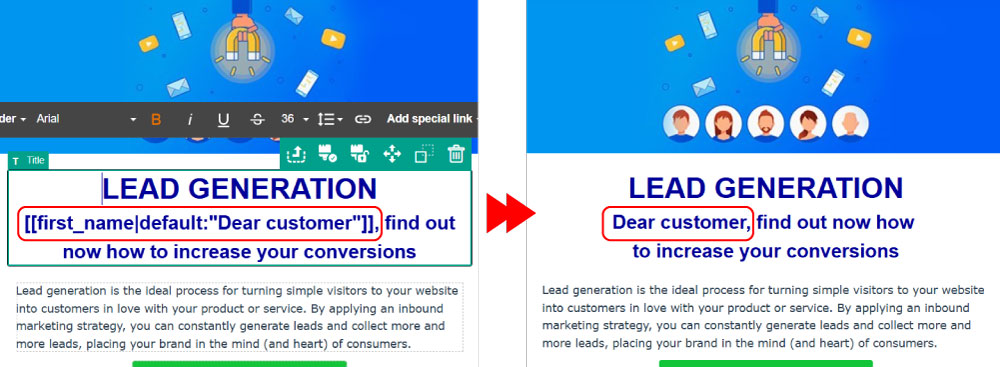
The filter is applied directly to the placeholder using the syntax [[field_name|default:"Default value"]].
For example, by writing [[first_name|default:"Dear customer"]] if the recipient’s Name field is empty, the email will display “Dear customer” instead of the name, while if the data is present, the user’s real name will be shown.
When using the |default filter together with a formatting filter such as |capitalize, the behavior is as follows:
- if the contact’s field contains a value, the real data is shown with the chosen formatting applied (e.g., “jOHN” → “John”);
- if the field is empty, the fallback value specified in the
defaultfilter is displayed.
For example, by writing [[first_name|capitalize|default:"Dear customer"]], the system will show “John” if the recipient’s name is present, or “Dear customer” if the field is empty.
It is important to note that the default value must be written already in the desired format, because the capitalize formatting is applied only to the contact’s real data.
This way you can ensure that every email is complete, readable, and personalized, even when some data has not been provided by users.
Simple filters summary
| Filter | Description | Applies to | Examples |
|---|---|---|---|
No filter |
Placeholder with no filter applied | / |
[[first_name]]john
→ johnJohn
→ JohnjoHN
→ joHN<empty>
→ <empty> |
capitalize |
Makes the first letter uppercase and the following ones lowercase. |
|
[[first_name|capitalize]]john
→ JohnJohn
→ JohnjoHN
→ John<empty>
→ <empty> |
uppercase |
Makes all letters uppercase. |
|
[[last_name|uppercase]]smith
→ SMITHSmith
→ SMITHsmITH
→ SMITH<empty>
→ <empty> |
lowercase |
Makes all letters lowercase. |
|
[[email|lowercase]]eva@email.com
→ eva@email.comEva@email.com
→ eva@email.comEVA@email.com
→ eva@email.com<empty>
→ <empty> |
default |
Inserts a default text if the field is empty. |
|
[[first_name|default:"Dear customer"]]john
→ johnJohn
→ JohnjoHN
→ joHN<empty>
→ Dear customer |
Chained filters summary
| Filter | Description | Examples |
|---|---|---|
capitalize+ default |
Makes the first letter uppercase and the following ones lowercase. Inserts a default text if the field is empty. |
[[first_name|capitalize|default:"Dear customer"]]john
→ JohnJohn
→ JohnjoHN
→ John<empty>
→ Dear customer |
uppercase+ default |
Makes all letters uppercase and inserts a default text if the field is empty. |
[[first_name|uppercase|default:"Dear customer"]]john
→ JOHNJohn
→ JOHNjoHN
→ JOHN<empty>
→ Dear customer |
lowercase+ default |
Makes all letters lowercase and inserts a default text if the field is empty. |
[[first_name|lowercase|default:"Dear customer"]]john
→ johnJohn
→ johnjoHN
→ john<empty>
→ Dear customer |